


| Quick Answer: No-code AI automation tools let you build AI-powered workflows without writing code. The best ones in 2026 are: Make (best for complex visual workflows), n8n (best for self-hosted control), Zapier AI (best for app integrations), Relevance AI (best for AI agents), and Lindy (best for personal AI assistants). Each serves a different need — this guide tells you exactly which fits yours, what things really cost, and where each tool breaks. |
What Are No-Code AI Automation Tools (And How Are They Different From Regular Automation)?
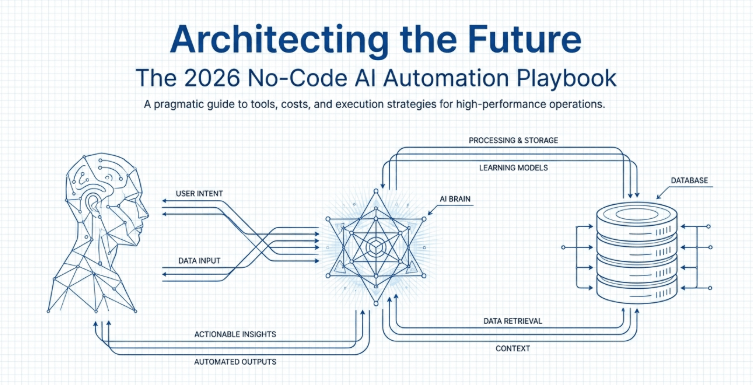
Short answer: regular automation follows fixed rules you set. No-code AI automation tools let the AI make decisions inside those rules — no programming needed.
Here is a clear example. With old-school Zapier, you might say: when a new email arrives with the subject ‘complaint’, move it to a specific folder. That is a rule. It always does the same thing, regardless of context.
With a no-code AI automation tool, the step looks different. The email arrives, an AI model reads the full content, decides whether it is actually a complaint or just a misworded request, assigns a priority level, drafts a reply, and routes it to the right team — all automatically. You did not write code. You built the workflow visually and dropped an AI step in the middle.
The core difference: regular automation moves data. AI automation processes data, understands it, and acts on it.
That distinction matters because most businesses already have Zapier or Make doing basic integrations. The question is not whether to use automation — it is whether your current setup can handle judgment calls, not just rule-following.
Why Is Everyone Switching to AI-Powered No-Code Automation in 2026?
Three things converged and created the current wave.
First, LLMs became reliable enough for production use. GPT-4, Claude 3.5, and Gemini 1.5 Pro can read a document, extract structured data, classify intent, and write coherent responses at a quality level businesses trust. That was not true in 2022.
Second, no-code platforms built real AI infrastructure. Make added native LLM modules. n8n added AI agent nodes with memory. Zapier launched AI-native workflow building. These are not just integrations with ChatGPT — they are AI-first features built into the workflow engine.
Third, developer hiring is slow and expensive. A five-person ops team at a mid-size company cannot wait six weeks for a developer to build an automation. With Make or n8n, that same team builds it in two days.
One honest note: ‘no-code’ means no programming syntax, not zero learning curve. Give yourself 2–3 days to understand triggers, actions, and data mapping before building anything critical.
What Is the Difference Between AI Agents and AI Workflows in No-Code Tools?
This is the most misunderstood distinction in this space, and it directly affects which tool you should use.
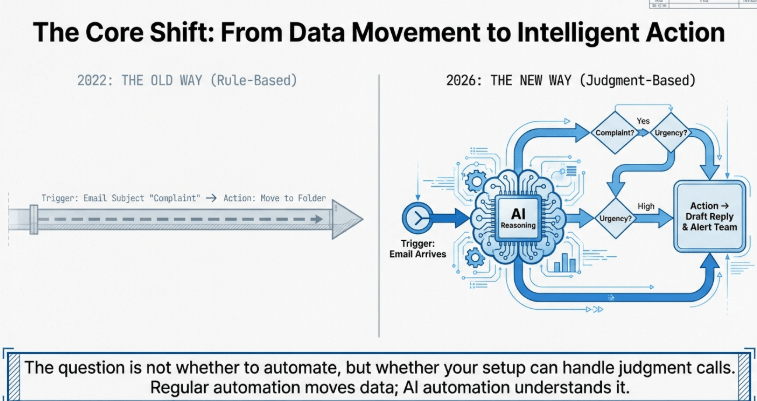
AI Workflow: You define every step. The AI executes specific steps within your defined path. Example: Email arrives → AI extracts customer name and issue → Creates a support ticket → Sends confirmation email. You drew this path. The AI handled two steps inside it. The structure is fixed.
AI Agent: You give the agent a goal and a set of tools. The agent figures out the steps itself. Example: ‘Research this lead, find their recent LinkedIn activity, check if they match our ICP, and write a personalized email.’ You did not define steps — the agent decided to search LinkedIn, run an ICP check, then write copy, in that order, based on what it found.
| Factor | AI Workflow | AI Agent |
|---|---|---|
| Process structure | You define every step | AI decides the steps |
| Best for | Repetitive, predictable tasks | Complex, research-heavy tasks |
| Real example | Route support tickets by sentiment | Qualify a lead and write outreach |
| Failure mode | Breaks at edge cases you missed | Can loop, hallucinate, or over-spend tokens |
| Human oversight | Low, after testing | High, especially in first weeks |
| Cost predictability | High — fixed steps, fixed cost | Low — agents can run many LLM calls |
| Best tools in 2026 | Make, Zapier AI, n8n, Activepieces | Relevance AI, Lindy, Relay.app |
Start with workflows for any process you can map on paper. Move to agents only when the task is too variable to pre-define. That order saves you money and debugging time.
How Do No-Code AI Tools Actually Work (Behind the Simple Interface)?
Three layers run under every no-code AI workflow. Understanding them helps you build better and debug faster.
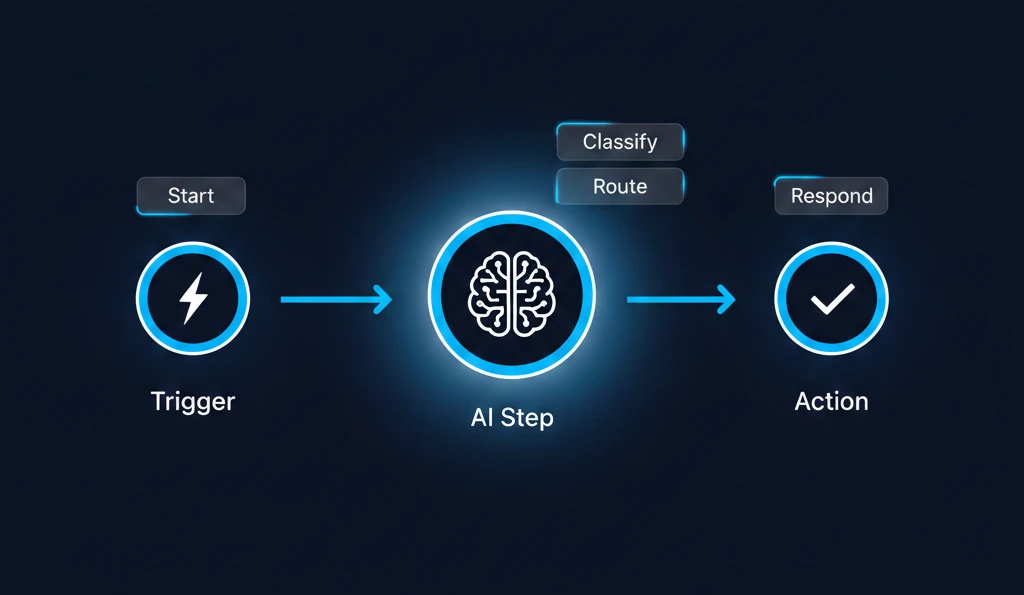
Layer 1 — Trigger: Something starts the workflow. A new row in Google Sheets, an incoming webhook, a form submission, a scheduled time, or an email. Without a trigger, nothing runs. Most broken workflows fail here — the trigger fires at the wrong time or not at all.
Layer 2 — AI Processing: Your workflow sends data to an LLM via API. The tool constructs a prompt (using your template + the incoming data), calls the API (GPT-4, Claude, Gemini), and gets a response back. The quality of what comes back depends entirely on your prompt quality. The platform just delivers the message.
Layer 3 — Action: The tool takes the AI’s output and does something: creates a CRM record, sends a Slack message, updates a spreadsheet, triggers another workflow, or sends an email.
The thing most people miss: the AI step is just a function call. You pass text in, text comes out. If your downstream action expects a JSON object with a field called ‘category’ and the AI returns ‘The category is: Billing’, your action breaks. You must write prompts that force structured, predictable output.
| ⚠ Warning: Always end AI prompts with explicit output instructions. Example: ‘Return only one word from this list: Billing, Technical, General. Do not add any other text.’ Without this, the AI gives verbose answers that break the next step. |
What Skills Do You Need for No-Code AI Automation (Hint: Less Than You Think)?
You need three things, none of which is coding.
- Logical process thinking: Can you map a workflow on paper — step 1, step 2, decision point, step 3a or 3b? If yes, you can build in Make or n8n. If you cannot draw your process clearly, the tool will not help you. Define the process first.
- Prompt writing: This is the real skill. A vague prompt gives vague output. A specific prompt with constraints gives consistent, usable output. Practice writing prompts that specify format, length, and exactly what to return.
- Data literacy: You need to understand that when step 1 returns {{customer.name}}, step 2 can reference that variable. It is formula-level thinking, not programming. If you can use VLOOKUP in Excel, you can handle data mapping in Make.
The most common mistake: people try to automate processes they have never done manually. Build the process manually first, document every step and decision point, then automate it. Trying to figure out the logic inside the tool wastes hours.
Why Do 79% of Leaders Believe AI Automation Will Improve Efficiency by 25%+?
That figure comes from McKinsey’s 2024 global survey on AI in business operations. It reflects results already happening in early adopter companies, not just expectations.
Customer support teams using AI triage handle 60–70% more tickets without adding headcount. That is documented in Intercom and Zendesk case studies. Sales teams using AI for lead research and email drafting send 2–3x more personalized outreach per rep per day. Finance teams using AI for invoice processing cut processing time from 3 days to 4 hours.
The 25% threshold is realistic — but only when automation targets high-volume, repetitive tasks with clear inputs and outputs. Where the gains shrink or disappear: judgment-heavy tasks with no human review, low-volume tasks where setup time exceeds the savings, and any automation built without proper error handling.
The 21% of leaders who are skeptical are not wrong. They have either seen automations fail in production or chosen wrong tasks to automate. The tool is not the problem in those cases — the task selection was.
What Are the 3 Types of No-Code AI Automation (Visual, Text, Prompt-Based)?
These are not just interface differences. Each type solves a different problem for a different kind of user.
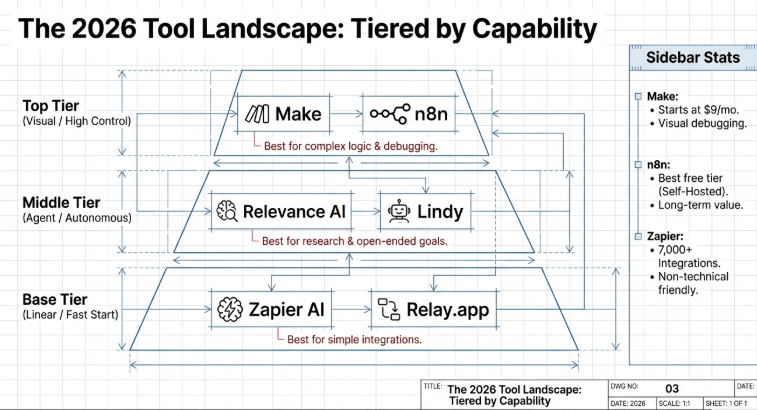
Type 1 — Visual (Drag-and-Drop): You see a canvas. You drag modules onto it and connect them with arrows. Make and n8n both work this way. Every connection, every data field, every condition is visible. This is the best type for complex workflows because you can see the entire logic at once. When something breaks, you can trace the exact path.
Type 2 — Prompt-Based: You describe what you want in plain language. The tool builds a draft workflow from your description. Relay.app and the newer version of Zapier AI do this. Faster to start, but the generated workflow needs manual review — especially for conditional logic and edge cases.
Type 3 — Text/Natural Language Rules: You write near-plain-English rules. ‘When a lead comes from LinkedIn, check if their company has 50+ employees. If yes, add to CRM and send sequence A. If no, send sequence B.’ Lindy operates partly this way for agents. Good for simple linear flows. Breaks down when logic gets complex.
For serious business automation, visual tools (Make, n8n) give you the control you need. Use prompt-based generation to get a starting draft quickly, then switch to the visual editor to refine it.
Visual AI Automation Tools: When Drag-and-Drop Beats Coding?
Drag-and-drop wins in one specific scenario: the person who knows the business process best is building the automation themselves, without a developer in the room.
A sales ops manager who knows the CRM workflow inside out can build a better Make scenario than a developer who has to be briefed on every nuance. That is the real argument for visual no-code. Domain expertise applies directly — no translation layer needed.
Make specifically deserves mention here. Its scenario builder shows every module, every data connection, every filter. When a run fails, the data inspector shows exactly what entered each module and what came out. For debugging AI workflows — which fail in interesting ways — that visibility is genuinely valuable.
The limitation hits at scale. A workflow with 40+ modules becomes visually overwhelming. At that point, break it into sub-scenarios that call each other, or accept that a developer might own maintenance better than you.
Prompt-Based AI Automation: Can You Really Just Describe What You Want?
For simple, linear workflows: yes, genuinely. For anything with conditions, error handling, or multi-step data transformation: partially.
Zapier AI’s natural language builder is the best current example. You describe the workflow — ‘When a new Typeform submission arrives, send the data to GPT-4 to classify the inquiry type, then add it to the right Notion database based on the type’ — and it builds a draft. The draft is usually 80% correct. You spend 15 minutes adjusting the data mapping and output formatting.
The risk: the generated workflow looks functional on first test but has subtle gaps. Specific edge cases — what happens when the form submission has empty fields, or when GPT-4 returns an unexpected category — are often not handled. You deployed something that works 95% of the time and silently fails the other 5%. And you do not notice until two weeks in.
| ⚠ Always run at least 20 test cases with varied inputs before deploying any AI workflow to production. Include edge cases: empty fields, unusually long text, unexpected characters, and inputs that should trigger your ‘other’ category. |
Text-Based No-Code AI: How ‘If This Then That’ Evolved for 2026?
IFTTT in 2014 was one trigger, one action. Rain in your city → send you an SMS. Personal, simple, useful for individuals.
The 2026 equivalent for business is Zapier AI’s natural language workflow builder — you describe a multi-step process with conditions in plain English, and the tool constructs an actual workflow. The underlying engine has conditions, filters, multi-step logic, and AI steps. The interface just lets you describe it instead of building it manually.
Lindy takes this further for agent tasks. You tell Lindy: ‘Every morning, check my email, summarize anything urgent, and draft replies for anything from clients.’ Lindy interprets that as an ongoing agent task, not a fixed workflow. It runs with some autonomy.
Text-based automation works best for simple, repeated tasks with consistent inputs. The moment your logic has more than two decision branches, move to a visual builder for clarity.
AI Agent Builders vs. Workflow Automators: Which Do You Actually Need?
The honest answer: most businesses need workflow automators, not agent builders, for 80% of their automation needs.
Agents sound more powerful — and for specific tasks, they are. But agents are harder to control, harder to debug, more expensive per run, and more likely to behave unexpectedly. They are best reserved for tasks where the steps are genuinely unpredictable.
Use a workflow automator when: your process has defined steps, defined inputs, and defined outputs. Invoice processing, lead routing, ticket classification, weekly report generation — all of these are workflow tasks.
Use an agent builder when: the task requires researching unknown information, making multi-step decisions based on what it finds, or adapting its approach based on results. Competitive intelligence gathering, personalized outreach based on research, or complex scheduling decisions — these benefit from agents.
Relevance AI lets you build both. You can create an agent with specific tools (web search, email access, CRM read/write) and define the goal. The agent plans its own steps. This works well but costs more per run because the agent makes multiple LLM calls to plan and execute.
Integration-First vs. AI-First: Why the Difference Matters for Your Stack?
Zapier started as an integration platform. Connect app A to app B. AI was added on top of that infrastructure. Make (Integromat) is the same — integration-first, with AI modules inserted where needed.
Relevance AI and Lindy started as AI platforms. They built the agent reasoning layer first, then added integrations. Their AI capabilities go deeper — multi-step reasoning, memory between runs, tool-use planning — but they connect to fewer apps natively.
This matters for your decision. If your primary pain is connecting 10 different tools and adding AI steps to some of them, choose an integration-first platform (Zapier AI, Make). You get 5,000+ native integrations and solid reliability.
If your primary need is a sophisticated AI agent that thinks through complex tasks, choose AI-first (Relevance AI, Lindy). Accept that you will need more manual setup for app connections.
Trying to force Make into doing deep agent reasoning creates messy workarounds. Trying to use Relevance AI as your main integration hub means building a lot of custom HTTP connections. Play to the platform’s core strength.
The 12 Best No-Code AI Automation Tools 2026: Ranked by AI Capabilities
This ranking focuses specifically on AI capability depth — not just whether the tool has an AI button, but how well the AI actually integrates into real workflows, how reliable the output is, and how much control you have over it.
| Rank | Tool | AI Type | Best For | Free Tier | Paid From |
|---|---|---|---|---|---|
| 1 | Make (Integromat) | Native LLM modules + AI router | Complex multi-step visual workflows | 1,000 ops/month | $9/month |
| 2 | n8n | AI agent nodes, self-hosted LLM | Technical teams wanting full control | Free (self-hosted) | $20/month (cloud) |
| 3 | Zapier AI | Natural language builder + AI steps | Wide app integration + AI steps | 100 tasks/month | $19.99/month |
| 4 | Relevance AI | Full AI agent platform | Complex AI agents with tools | 100 credits/day | $19/month |
| 5 | Lindy | Personal + business AI agents | Recurring agent tasks, scheduling | Limited free | $49/month |
| 6 | Activepieces | Open-source AI-ready workflows | Developers, self-hosted teams | Free (community) | $8/month (cloud) |
| 7 | Relay.app | Prompt-to-workflow builder | Quick workflow creation | Free trial | $9/month |
| 8 | Parabola | AI data transformation | Data cleaning + transformation | Free trial | $80/month |
| 9 | Airtable Automations | AI field generation | Database-centric workflows | Free plan | $20/seat/month |
| 10 | Retool | Low-code AI app builder | Internal tools with AI | Free (5 users) | $10/user/month |
| 11 | Botpress | AI chatbot automation | Conversational AI workflows | Free plan | $89/month |
| 12 | Bardeen | Browser-based AI automation | Sales research, scraping | Free plan | $10/month |
Which No-Code AI Tool Has the Best Free Tier (That You Can Actually Use)?
Most free tiers are marketing, not actual usable limits. Here is what actually works in practice.
- n8n self-hosted: The best free tier in the category if you can run it on a VPS or your own server. Unlimited workflows, unlimited executions, all AI features available. You just manage the server. A $5/month DigitalOcean droplet handles most small teams.
- Make free plan: 1,000 operations per month is enough for testing and low-volume workflows. The two-minute minimum scheduling interval means you cannot build real-time triggers on the free plan. Useful for learning, not production.
- Relevance AI free: 100 credits per day is enough for testing AI agents. A single agent run with 5 LLM calls uses roughly 25–50 credits. Realistic for experimentation, not production volume.
- Zapier free: 100 tasks per month across all your workflows. That runs out in hours once you deploy anything real. The free plan is purely for testing.
- Activepieces community: Fully free, self-hosted, open-source. Similar to n8n in the self-hosted model. Good for teams comfortable with server management.
For actual production use on a budget: self-host n8n on a $5 VPS and use $5/month of OpenAI API credits. That setup handles substantial volume for around $10/month total — cheaper than every paid plan listed above.
Zapier AI vs. Make vs. n8n: Which Handles AI Workflows Best?
These three dominate the market and each has a clear strength. The comparison is not about which is ‘best overall’ — it is about which is best for your specific situation.
| Factor | Zapier AI | Make | n8n |
|---|---|---|---|
| AI workflow building | Natural language builder, fast start | Visual modules, full control | AI agent nodes, code when needed |
| App integrations | 7,000+ native apps | 1,500+ apps, solid coverage | 400+ native, API for the rest |
| Ease of use | Easiest | Medium | Hardest (most powerful) |
| AI model support | OpenAI, Anthropic via integration | OpenAI, Anthropic, Gemini native | All major LLMs + local models |
| Error handling | Basic | Strong, with retry logic | Full control, developer-grade |
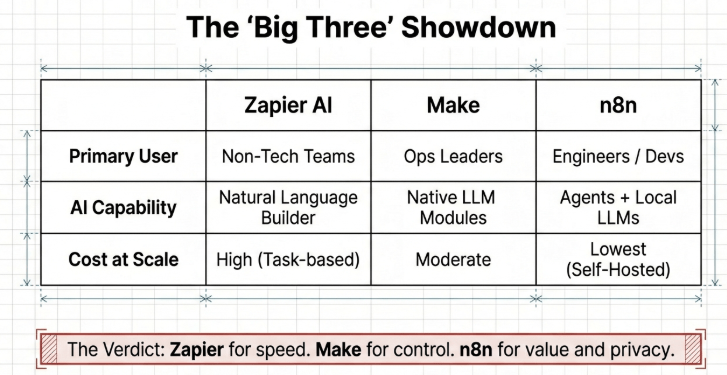
| Cost at scale | Expensive (task-based) | Moderate (operation-based) | Cheapest (self-hosted) |
| Best user | Non-technical ops teams | Power users, ops leaders | Technical teams, developers |
Practical take: if your team has no technical members, start with Zapier AI. If one person is reasonably technical, Make gives better control at lower cost. If you have a developer on the team or can manage a server, n8n is the most powerful and cheapest long-term option.
Lindy vs. Relevance AI: Best No-Code AI Agent Builder Showdown?
These two are genuinely different products despite both being called ‘AI agent builders.’
Lindy is built around a personal AI assistant model. You set up Lindies (individual agents) for recurring tasks — manage my calendar, read my emails, respond to specific types of messages, do weekly research. It is excellent for individuals and small teams who want an AI that handles ongoing responsibilities autonomously.
Relevance AI is built around a team-of-agents model. You create AI workers — each with specific tools, instructions, and a role. You can have a Research Agent, a Writing Agent, and a QA Agent that work together on a task. It is better for businesses that want to build AI into their operations at a team level.
Choose Lindy if: you want an AI assistant that handles personal and business recurring tasks with minimal setup. It is faster to get running and easier to configure.
Choose Relevance AI if: you are building a multi-agent workflow where different agents handle different specializations and hand off to each other. It scales better for complex business automation.
Why Is Parabola the Best for AI Data Transformation (And When It Is Not)?
Parabola occupies a unique position: it is specifically designed for data transformation workflows, not general automation. If your main problem is that you receive messy data from one place and need to clean, transform, and load it somewhere else — Parabola handles this better than any general automation tool.
It uses a visual data pipeline where each step transforms data. An AI step can extract structured information from unstructured text, classify records, or fill gaps in datasets. The visual output shows exactly what the data looks like at each transformation stage — which is invaluable for debugging data quality issues.
It is not the right choice when: you need real-time triggers (Parabola runs on schedules, not instant triggers), you need to automate non-data tasks like sending emails or creating calendar events, or your budget is tight ($80/month starting price is steep for small teams).
Activepieces vs. n8n: Open-Source AI Automation Face-Off?
Both are open-source, self-hostable, and free at the core. The differences matter for your choice.
n8n: More mature ecosystem, larger community, more pieces (integrations), better documentation, steeper learning curve. It has been around since 2019 and has solved more edge cases. AI agent capabilities are more developed. But the interface is more complex and takes longer to learn.
Activepieces: Newer (2022), cleaner interface, easier to start with, but a smaller integration library. The development team is building AI features rapidly. If you need a smaller set of integrations and want a simpler interface, Activepieces is genuinely easier for non-technical teams.
For most teams: if you can commit to learning a slightly complex tool, n8n gives more long-term value. If you need something the team can use quickly without deep training, Activepieces gets you running faster.
Which No-Code Tools Have Native AI (vs. Just Adding GPT-4 as an Afterthought)?
This distinction separates tools that genuinely integrate AI from tools that just have an ‘HTTP request to OpenAI’ button hidden in a module.
Native AI (built into the workflow engine): Make’s AI module lets you choose the model, write the system prompt, pass dynamic data, control output format, and handle errors within the same workflow logic. n8n’s AI agent nodes have memory, tool-use, and can loop based on results. These are first-class features.
AI as an afterthought: Some tools just expose a generic ‘AI’ step that sends text to ChatGPT and returns text. No output formatting control, no structured data handling, no error-specific retry logic. These technically have AI but practically break as soon as you need anything more than simple text generation.
How to test this: try to get an AI step to return a specific JSON structure and use one field from it in the next step. If the tool makes this easy with built-in JSON parsing, the AI integration is solid. If you need workarounds, it is bolted on.
How Do You Build AI Agents Without Code (Step-by-Step Guide)?
Using Relevance AI as the example — it has the clearest agent-building interface for non-technical users.
- Step 1 — Create a new Agent: Go to Relevance AI → Agents → New Agent. Give it a name and description. The description matters because it affects how the agent interprets ambiguous tasks.
- Step 2 — Write the System Prompt: This is the agent’s permanent instruction. Write it as if briefing a new employee. Include: the agent’s role, what it should do, what it should never do, what format to respond in, and how to handle situations it is unsure about.
- Step 3 — Add Tools: Tools are what the agent can do — web search, send email, read a spreadsheet, call an API. Add only the tools the agent needs for its specific task. Giving an agent too many tools makes it unpredictable.
- Step 4 — Set the Trigger: How does the agent start working? Manual (you activate it), scheduled (every morning at 8am), or event-based (new lead added to CRM). Configure this based on your use case.
- Step 5 — Test with Diverse Inputs: Run the agent with at least 10 different test scenarios. Check: does it stay on task, does it use tools correctly, does it handle edge cases, does it return output in the expected format.
- Step 6 — Add Human Review Points: For any agent action that cannot be undone (sending emails, deleting records, making payments), add a human approval step before the action runs. This is not optional for production agents.
- Step 7 — Monitor for the First 2 Weeks: Check every run. AI agents develop unexpected patterns with real-world data. Catch problems early before they cause downstream issues.
What Is LLM Integration in No-Code Tools (And Which Do It Best)?
LLM integration means connecting your workflow to a large language model — GPT-4, Claude 3.5, Gemini 1.5 — and using it to process text as part of your automation.
The depth of integration varies significantly between tools.
- Make: Supports OpenAI, Anthropic, Google Gemini, and others natively. You configure the model, temperature, max tokens, system prompt, and user prompt within the visual module. Structured JSON output is handled with a built-in JSON parser. Solid for production workflows.
- n8n: Supports every major LLM plus local models like Ollama (run LLMs on your own hardware). The AI agent node has built-in memory so the agent remembers context between steps. Best LLM integration in terms of raw capability and flexibility.
- Zapier AI: OpenAI and Anthropic supported. The AI step is simpler — you write a prompt, it returns text. Less control over formatting and output structure compared to Make or n8n.
- Relevance AI: Lets you choose any LLM per tool and per agent. You can have one agent using GPT-4 for reasoning and another using Claude for writing — in the same workflow. Best for multi-model agent architectures.
Can No-Code AI Tools Actually Write Code for You (The Truth)?
Yes — with limits that matter.
Make, n8n, and Relevance AI all have features where AI can generate JavaScript or Python code to run inside the workflow. You describe what you want the code to do, the AI writes it, and the workflow executes it. This is genuinely useful for data transformation tasks that would otherwise require complex module chains.
The limits: the generated code works for straightforward tasks. Simple string manipulation, data reformatting, basic calculations. When the task gets complex — calling external APIs, handling authentication, processing large datasets — the generated code often has bugs that only appear with specific inputs.
The practical use: use AI code generation to write small transformation functions, not full application logic. Treat every generated piece of code the way you would treat code from a junior developer — review it, test it with edge cases, and add error handling before trusting it in production.
What Are AI Copilots in Automation Tools (And Do They Actually Help)?
AI copilots are assistants built into the workflow builder itself — not part of your automation, but helpers while you are building.
Make has an AI assistant that suggests modules based on what you are trying to do. Zapier AI builds draft workflows from your description. n8n has an AI chat assistant that helps you configure nodes.
Do they actually help? For beginners, yes — significantly. They cut the time to first working workflow from hours to 30 minutes. For experienced users, they get in the way more than they help. The suggestions are often slightly wrong, and correcting them takes longer than just building manually.
The pragmatic approach: use the AI copilot to generate your first draft, then switch to manual editing to refine it. Do not rely on the copilot for final configurations, especially data mapping and error handling.
How Do You Add Generative AI to Existing No-Code Workflows?
This is the most common scenario for established teams: you already have Zapier or Make workflows running, and you want to add AI capability to them without rebuilding everything.
- Identify the right insertion point: Look for steps in your existing workflow where a human currently makes a decision or processes text. Those are the AI insertion candidates. If a human reads an email and decides which team to route it to — that step can be AI-powered.
- Add an AI module between existing steps: In Make, drag an OpenAI module between your trigger and your action. Pass the relevant data from the trigger into the AI module’s prompt. Use the AI output as the input for your action.
- Write a specific prompt: Use the data coming from the previous step in your prompt. For email routing: ‘Read this email subject and body: [subject] / [body]. Classify the topic as one of: Billing, Technical Support, Sales, General. Return only the category name.’
- Map the AI output to your action: The AI returns ‘Billing’. Your next step filters on that value and routes to the billing team’s inbox. Use the exact output text in your filter conditions.
- Test with 20+ real examples: Pull real data from your history and run it through the updated workflow. Check that the AI classifies correctly across the range of inputs you actually receive.
What Is the Best No-Code AI Tool for Customer Service Automation?
Make + OpenAI is the most practical and reliable combination for most customer service automation needs.
Here is a specific workflow that works: Customer submits a support ticket via email or form → Make receives the trigger → OpenAI reads the ticket content and classifies it as Billing, Technical, Account, or General, also assigns priority 1–3 based on urgency language → Make routes to the correct team’s inbox, creates a Zendesk or Freshdesk ticket with the right tags and priority → If priority 1, also sends a Slack alert to the on-call person.
That workflow handles 70–80% of routing decisions automatically. The remaining 20% — edge cases, unclear tickets, sensitive situations — get flagged for human review.
Do not use an AI agent for this. A fixed workflow is more reliable, cheaper per run, and easier to audit. Save agents for complex multi-step customer research tasks.
Which AI Automation Platform Handles Sales Lead Qualification Best?
For lead qualification, Relevance AI or Zapier AI + OpenAI, depending on how complex your qualification process is.
Simple qualification (firmographic filtering + email response analysis): Zapier AI workflow. New lead comes in → AI checks company size, industry, role against your ICP → Scores the lead 1–10 → Routes high-score leads to SDR immediately, low-score leads to nurture sequence.
Complex qualification (research-based): Relevance AI agent. The agent receives the lead, searches for the company online, checks recent funding news and hiring activity, analyzes the lead’s LinkedIn activity, cross-references with your CRM for existing relationships, then writes a qualification summary with recommended next action.
The second approach is more powerful but costs 10–20x more per lead in LLM credits. Run the first approach on all leads, then apply the second only to leads that pass the initial screen. That balance gives good qualification quality at a reasonable cost.
What Is the Top Choice for AI-Powered Marketing Automation?
Make is the best workflow platform for marketing automation. For the AI content layer, Claude 3.5 Sonnet (Anthropic) consistently produces the most natural-sounding marketing copy compared to other models — worth specifying in your setup.
Practical marketing automation stack: Lead fills form on website → Make triggers → AI researches the lead’s industry and role → Generates a personalized welcome email based on the lead’s vertical → Adds the lead to the correct segment in your email platform → Creates a task in CRM for the sales rep with a suggested first message.
The personalization step is where AI adds the most value. Generic welcome emails average 2–3% click rates. AI-personalized emails referencing the lead’s specific industry context average 6–9% in tested campaigns. The content quality depends on the prompt quality and the model you use.
Which No-Code AI Tool Excels at Document Processing and Data Extraction?
Parabola for batch processing. Make + OpenAI for real-time document processing.
Document processing means: receive a PDF or image → extract structured data from it → store that data in a database or spreadsheet. Examples: extracting invoice line items, pulling key terms from contracts, processing form submissions.
For invoice processing with Make: Email arrives with PDF attachment → Make extracts the PDF → Passes it to OpenAI’s vision API (GPT-4V) with a prompt specifying what fields to extract → Returns JSON with vendor name, invoice number, line items, total, due date → Creates a record in Airtable or Google Sheets.
GPT-4V handles most standard invoice formats well. Where it struggles: handwritten documents, low-resolution scans, and documents with unusual layouts. For those edge cases, you will need a specialized OCR tool like Textract or Mindee as an intermediate step.
What Is the Best AI Automation for HR and Employee Onboarding?
n8n for self-hosted HR workflows where data privacy matters. Zapier AI or Make if you are comfortable with cloud processing.
HR automation is sensitive because it involves personal employee data. Self-hosting n8n means that data stays on your infrastructure and does not pass through a third-party automation platform’s servers. That matters for GDPR compliance and internal data policies.
Specific onboarding workflow: New hire record created in HR system → n8n triggers → AI generates personalized onboarding checklist based on role and department → Creates accounts in relevant tools (via APIs) → Sends welcome email with first-week schedule → Creates tasks for manager and IT team → Schedules check-in meetings for week 1, 2, and 4.
The AI step here generates the personalized checklist. A generic checklist takes 2 minutes to build manually. An AI-generated, role-specific one takes the same time to generate but is actually useful for the new employee instead of a generic template they ignore.
Which Tool Handles AI-Powered Financial Reconciliation and Reporting?
Parabola for data transformation and reconciliation. Make for trigger-based financial alerts.
Financial reconciliation with Parabola: Connect your bank export, your accounting software export, and your invoice system. Parabola maps fields across the three sources, an AI step identifies mismatches and anomalies, and it generates a reconciliation report with flagged items that need human review.
This process previously required a finance team member to spend 4–6 hours weekly on matching transactions. Parabola handles the mechanical matching in minutes and flags only the genuinely unclear items. The finance person reviews 15 exceptions instead of 300 transactions.
Important limit: do not use AI for the final financial decision. Use it to surface issues for human review. No financial automation should execute transactions or make accounting entries without human sign-off. AI in finance is an assistant, not a decision-maker.
How Do You Build Your First AI Workflow in 30 Minutes (No Code)?
Using Make for this guide — it gives the best balance of usability and power for first-time builders.
- Set up your Make account (3 min): Go to make.com, create a free account. You get 1,000 operations per month. Click ‘Create a new scenario.’
- Add your trigger module (5 min): Click the + button, search for your trigger app (Gmail, Google Sheets, Typeform, Webhooks). Select the trigger event — ‘New email’, ‘New row’, ‘New submission’. Connect your account and configure which mailbox or sheet to watch.
- Add an OpenAI module (8 min): Click + to add the next module. Search ‘OpenAI’. Select ‘Create a Completion’ or ‘Create a Message (ChatGPT)’. Connect your OpenAI API key. Write your system prompt (what the AI should do). In the user prompt, reference data from your trigger step by clicking the data field and selecting the variable.
- Write a structured prompt (5 min): Example for email classification: System: ‘You are an email classifier. Classify emails into exactly one category.’ User: ‘Email subject: [map the subject field here]. Email body: [map the body field here]. Return only one word: Billing, Technical, Sales, or General.’
- Add your action module (5 min): Click + to add the final step. Search for your destination app (Gmail, Slack, Airtable, Notion). Select the action. Map the AI output to the right fields. If routing to Slack, map the AI’s classification to the correct channel variable.
- Test and deploy (4 min): Click ‘Run once’ to test with one real data sample. Check every step’s input and output in the execution log. Fix any mapping errors. Click the scheduling button to set how often it runs or leave it on instant trigger.
That covers a real, working AI workflow. It classifies incoming emails and routes them based on AI analysis. From here, add complexity gradually — filters, additional branches, error handling.
What Is the Step-by-Step Process for Creating an AI Agent Without Coding?
Using Relevance AI — the clearest interface for non-coders building agents.
- Create your agent: Log in → Agents → New Agent. Name it clearly (e.g., ‘Lead Research Agent’ not just ‘Agent 1’). The name affects how you will find it later when you have 10+ agents.
- Write the agent instructions: This is the most important step. Write a detailed paragraph describing: what this agent does, what it should never do, what format its final response should be in, and how it should handle situations where it is unsure. Treat this like writing a job description.
- Add tools carefully: Tools are what the agent can do. Add only what it needs. A research agent needs: web search. A CRM agent needs: read CRM, write CRM. An email agent needs: read email, send email. Adding unnecessary tools makes the agent unpredictable.
- Set knowledge (optional): Upload documents, PDFs, or paste text that the agent should use as reference. A support agent benefits from your help center articles. A sales agent benefits from your product documentation and ICP description.
- Configure the trigger: Manual (activated when you call it), scheduled, or event-based (webhook from another tool). For testing, use manual trigger.
- Run your first test: Give the agent a task in plain language. ‘Research this company: [company name]. Find: their main product, company size, recent news, and whether they match our ICP (B2B SaaS, 50–500 employees, US-based). Write a 150-word summary.’
- Review the output critically: Did it actually search? Did it find accurate information? Did it stay within the format you specified? Did it hallucinate anything? Run 5–10 tests before trusting it with real operations.
How Do You Connect AI Models to Your Existing No-Code Stack?
You need an API key from the AI provider and a module or HTTP connection in your automation tool.
OpenAI: Go to platform.openai.com → API keys → Create new secret key. Copy it. In Make, search for OpenAI module and paste the key in the connection setup. In Zapier, search for OpenAI action and connect your account.
Anthropic (Claude): Go to console.anthropic.com → API keys → Create key. In Make, use an HTTP module to call the Anthropic API directly (there is no native Make module — but n8n has a native Anthropic node). In n8n, search for Anthropic in the node library and connect your key.
Google Gemini: Go to Google AI Studio → Get API key. Make has a native Google Gemini module. n8n has a Google Gemini node. Zapier supports it through the AI step settings.
Key decision: use the AI provider that fits your task. GPT-4 is best for structured data extraction and code generation. Claude 3.5 is best for writing, nuanced analysis, and following complex instructions. Gemini 1.5 Pro is best for tasks involving large document analysis (it has the largest context window of the three).
What Is the Best Way to Test AI Automation Before Going Live?
Testing AI workflows requires a different approach from testing regular automations, because AI output is probabilistic — the same input can produce slightly different outputs across runs.
- Collect 30 real test cases: Pull actual data from your systems — real emails, real support tickets, real leads. Not invented examples. Real data has the weird edge cases that invented test data misses.
- Run each case through the workflow: Record the AI output for each. Use a spreadsheet: input, expected output, actual output, correct/incorrect.
- Measure accuracy: If 27 of 30 produce correct output, you have 90% accuracy. Decide if that is acceptable for your use case. Customer-facing workflows might need 98%+. Internal routing can work at 90%.
- Analyze the failures: Look for patterns in what the AI got wrong. Often, failures cluster around specific input types. Adjust your prompt to handle those types explicitly.
- Add error handling for known failure modes: If the AI sometimes returns output that is not in your expected list, add a filter that catches unrecognized values and routes them to a human review queue.
- Run a soft launch: Deploy the workflow for one week with a human reviewing every output before it triggers the final action. This catches production-specific issues without causing damage.
How Do You Handle Errors and Edge Cases in AI-Powered Workflows?
Error handling in AI workflows is more important than in regular automations, because AI failures are harder to predict and often silent.
Output validation: After every AI step, add a filter that checks whether the output matches your expected format. If you expect one of four categories and get something else, do not pass it to the next step. Route it to a human review step instead.
Retry logic: AI APIs sometimes fail due to rate limits or temporary issues. In Make, you can configure automatic retries with a delay. Set 3 retries with exponential backoff (wait 1 minute, then 2, then 4).
Fallback paths: Every AI step should have a fallback. If the AI cannot classify a ticket, route it to a default queue with a note that classification failed. The workflow should never break silently.
Monitoring: Set up notifications for workflow failures. In Make, go to the scenario settings and enable email alerts on errors. Check your execution logs weekly even when things seem to be working.
What Is the 90-Day Roadmap for Implementing No-Code AI Company-Wide?
This roadmap is based on what works in practice, not theory. Most failed implementations rush to scale before they have proven the basics.
Days 1–30 — Foundation: Pick one high-volume, repetitive task in one department. Build a workflow for it. Deploy it with human review on every output. Gather data on accuracy and time saved. Do not expand to other departments yet.
Days 31–60 — Prove and Refine: Use the accuracy data from month 1 to optimize the workflow. Adjust prompts, add better error handling, tighten output validation. Once accuracy hits your threshold, remove human review from the routine cases (keep it for edge cases). Document what you learned.
Days 61–90 — Scale: Apply the lessons from the first workflow to a second use case in a second department. By now you have real data on how long setup takes, what accuracy is achievable, and what mistakes to avoid. The second deployment will be significantly faster. Build an internal guide so other teams can implement without starting from scratch.
The companies that fail do the opposite: they try to automate everything at once with no proven process. Pick one thing, prove it works, then multiply.
What Is the True Cost of No-Code AI Tools (Including Hidden AI Token Fees)?
The advertised price is rarely the real price. Here is what you actually pay at real usage volumes.
| Tool | Advertised Price | Hidden Cost | Real Cost at 10K ops/month |
|---|---|---|---|
| Zapier AI | $19.99/month (750 tasks) | Extra tasks $0.02–$0.05 each | $119–$319/month |
| Make | $9/month (10K ops) | Operations count per module | $9–$29/month |
| n8n Cloud | $20/month (2,500 executions) | Execution overage fees | $40–$80/month |
| n8n Self-hosted | $5/month VPS | OpenAI API calls separate | $5–$50/month total |
| Relevance AI | $19/month (1,000 credits) | Complex agents: 10–50 credits/run | $99–$499/month |
| Lindy | $49/month | Credit overage at scale | $49–$199/month |
| Parabola | $80/month | Volume pricing above thresholds | $80–$400/month |
The OpenAI API cost is separate from all platform costs. At current pricing (GPT-4 at roughly $0.01 per 1,000 input tokens), processing 10,000 emails at 500 tokens each costs about $50/month in API fees alone. Add that to your platform cost.
The cheapest real production setup: self-hosted n8n on a $5/month VPS, using the OpenAI API directly. Total monthly cost: $5 + API usage. For 10,000 moderate-size document classifications, expect $30–$60/month total — a fraction of any platform plan at equivalent volume.
How Do You Calculate ROI on AI Automation (With Real Formula)?
ROI = (Time Saved in Hours × Hourly Cost) – (Monthly Tool Cost + Setup Time Cost) / Monthly Tool Cost × 100
Real example: Your team manually classifies and routes 500 support tickets per week. That takes 2 minutes per ticket = 1,000 minutes = 16.7 hours per week. At $25/hour fully loaded cost, that is $417/week = $1,800/month in labor.
You automate it with Make + OpenAI. Setup takes 8 hours at $50/hour = $400 one-time. Monthly tool cost: Make $9 + OpenAI API ~$30 = $39/month. You still need a human to review exceptions — 10% of tickets — taking 2 hours per week = $200/month.
Monthly savings: $1,800 – $200 (human review) – $39 (tools) = $1,561/month. ROI breaks even in month 1 after the $400 setup cost. By month 3, you have saved $4,283.
Where people miscalculate: they forget the human review cost (AI needs some oversight), the setup time cost, and the ongoing maintenance time (prompts need adjustment as your data changes). Include all three in your ROI calculation.
Why Does ‘Affordable’ No-Code AI Cost $500+/Month at Scale?
Because pricing is designed for testing, not production volume.
Zapier’s $19.99/month plan gives 750 tasks. That sounds like a lot until you realize a single workflow with 5 steps uses 5 tasks per run. At 1,000 runs per month, that is 5,000 tasks — you are 6.7x over the plan limit. Zapier charges $0.02–$0.05 per additional task. 5,000 overage tasks × $0.03 = $150 in overages. Add your base plan and you are at $170/month.
Now add OpenAI API costs. 1,000 runs × 1,000 tokens each = 1 million tokens per month. At GPT-4 pricing, that is roughly $30–$60 additional. You are now at $200–$230/month for a single workflow.
At 10 workflows running at moderate volume, scale that math up and $500+/month is not unusual. The solution is not to avoid these tools — the ROI often still justifies the cost. The solution is to know this before you start and set a realistic budget.
Free Tier vs. Paid: When Do You Actually Need to Upgrade?
Upgrade when any of these four things happens:
- You hit volume limits: Your workflow starts failing because you have exceeded monthly operations or tasks. This means the automation is actually working and creating value — upgrade confidently.
- You need faster execution: Free plans often run on slower servers or minimum scheduling intervals (Make free tier minimum is 15 minutes). If your workflow needs to respond within seconds, upgrade.
- You need team features: Sharing workflows with colleagues, role-based access, and audit logs are usually paid features. Once a second person needs to manage workflows, upgrade.
- You need better error handling: Advanced retry logic, error notifications, and workflow history are usually gated behind paid plans.
Do not upgrade just because a tool encourages it. Start on the free tier, prove the workflow works and delivers value, then upgrade when you actually hit a limit.
What Is the TCO Difference: No-Code AI vs. Hiring Developers?
For equivalent automation output, no-code AI typically costs 70–85% less than developer-built solutions when you factor in total cost of ownership over 12 months.
Developer path: scope the project (2–4 weeks), development (4–8 weeks), testing (2 weeks), deployment, ongoing maintenance ($500–$2,000/month for updates and bug fixes). Total first-year cost for a moderate automation project: $30,000–$80,000.
No-code AI path: setup (1–2 weeks by ops person), tool cost ($39–$200/month), ongoing maintenance (2–4 hours per month by the same ops person). Total first-year cost: $500–$3,000.
The gap narrows when: the automation is highly complex, requires custom integrations not supported by no-code tools, handles very high transaction volumes (millions per day), or needs performance guarantees. For standard business automation, no-code wins on cost every time.
How Do You Avoid the AI Token Cost Surprise in ‘Unlimited’ Plans?
‘Unlimited’ in no-code AI plans almost always means unlimited platform operations — not unlimited AI API usage. The AI calls (to OpenAI, Anthropic, Google) are almost always billed separately based on usage.
Three things to do before deploying any AI workflow:
- Calculate your expected token usage: Count the approximate tokens in your prompt + expected response. Use OpenAI’s tokenizer at platform.openai.com/tokenizer to estimate. Multiply by your expected monthly run count.
- Set API spending limits: OpenAI, Anthropic, and Google all let you set monthly spending caps. Set a cap slightly above your expected usage so you get a warning if volume spikes, rather than an unexpected bill.
- Monitor weekly for the first month: Check actual API usage weekly. Compare to your estimate. Adjust prompts to be more concise if costs are higher than expected (shorter prompts and responses = lower costs).
The biggest cost surprises come from AI agents that loop — agents that make multiple LLM calls per task because they are planning, executing, reviewing, and replanning. Set maximum iteration limits on any agent to prevent runaway costs.
What Are the Top 5 Ways No-Code AI Automation Fails (And Prevention)?
Failure 1 — Unstructured AI output breaks the next step: The AI returns ‘The category is: Billing’ and your filter expects just ‘Billing’. The workflow does not error — it just routes everything to the wrong place silently. Prevention: always end prompts with explicit format instructions. Test by checking exact output strings.
Failure 2 — Edge case inputs the AI misclassifies: 99% of inputs work. Then an unusual one arrives and the AI outputs something unexpected. It cascades to the wrong action. Prevention: add output validation with a catch-all fallback that routes unexpected outputs to human review.
Failure 3 — API rate limits cause silent failures: The OpenAI API returns a rate limit error. Make or n8n logs the failure but does not alert you. The workflow stops processing for hours. Prevention: configure automatic retries and email alerts on workflow errors. Check execution logs weekly.
Failure 4 — Prompt quality degrades as data changes: Your prompt was written for 2024 email patterns. By 2025, the language your customers use has shifted. The AI’s accuracy drops slowly and you do not notice until it is causing real problems. Prevention: review AI output accuracy monthly, not just at launch.
Failure 5 — Over-automation without human oversight: Someone builds a workflow where the AI autonomously sends customer emails, updates CRM, and deletes old records — all without any human checkpoint. One bad batch corrupts data or sends 500 incorrect emails. Prevention: any action that cannot be undone in under 5 minutes requires a human approval step.
How Do AI Hallucinations Break No-Code Workflows (And Fixes)?
Hallucination in this context means the AI returns information that is fabricated or incorrect. In a chat interface, this is annoying. In an automated workflow, it is a business problem.
Example: you have a workflow that extracts vendor names and invoice numbers from PDFs and stores them in your accounting software. The PDF has an unusual layout. The AI cannot clearly read the invoice number, so it invents one. Your accounting software now has a record with a fabricated invoice number. Your finance team discovers the discrepancy during reconciliation — but weeks later.
The fixes work at two levels. First, constrain the AI’s options. Instead of ‘extract the invoice number’, say ‘extract the invoice number from this document. If you cannot find a clear invoice number, return exactly: NOT_FOUND.’ Now the failure is visible instead of fabricated.
Second, add a confidence threshold step. After the AI extraction, have a second AI call evaluate the first output: ‘Rate your confidence in this extraction from 1–10. Return only the number.’ If the confidence is below 7, route to human review instead of automatic processing.
The underlying principle: design workflows where AI uncertainty is visible, not hidden.
What Is Vendor Lock-In Risk With Cloud No-Code AI Platforms?
This is a real risk that most articles underplay. When you build complex workflows in Zapier or Make, you are building logic that is stored in that platform’s proprietary format. If the platform raises prices significantly, changes its API, or shuts down, migrating is painful.
Specific lock-in mechanisms: custom modules you have built in Make cannot be exported to Zapier. Zapier Zap logic does not transfer to n8n. Your workflow logic, data mappings, and configurations are all platform-specific.
Mitigation strategy: document every workflow in plain language outside the platform. Keep a spreadsheet or Notion doc with: workflow name, trigger, each step’s logic, prompt text, and action. If you need to rebuild in a new platform, you can reconstruct from the documentation rather than starting from scratch.
The best long-term lock-in protection: n8n self-hosted. Your workflows are stored in your own database. You can export them. The platform is open-source, so even if the company fails, the software keeps working.
Why Do 40% of No-Code AI Projects Never Reach Production?
Most fail for one of three reasons, and all three are avoidable.
Reason 1 — Wrong task selection: Teams try to automate the most complex, highest-impact process first. It fails due to complexity or edge cases, and they conclude that no-code AI does not work. The fix: start with the most boring, repetitive, high-volume task. Simple inputs, clear expected outputs, no gray area.
Reason 2 — No ownership: The project is driven by enthusiasm at the start but has no one responsible for maintaining it after launch. When the first problem occurs after deployment, nobody knows whose job it is to fix it. The fix: assign one named person as the owner of each workflow before you build it.
Reason 3 — Skipped testing: Teams build, do one test, declare success, and deploy. Real production data has edge cases that test data does not. The fix: the 30 real-data test cases approach described earlier. Non-negotiable before deployment.
What Data Privacy Risks Come With No-Code AI Tools?
When you send customer data through a cloud automation platform to an AI API, that data touches at least three third-party systems: the automation platform (Make, Zapier), the AI provider (OpenAI, Anthropic, Google), and potentially intermediate services.
GDPR considerations: if you process EU customer data, each system in the chain must have appropriate data processing agreements. Zapier, Make, and OpenAI all have DPAs available. Get them signed before processing personal data.
What NOT to send through cloud AI tools: social security numbers, financial account details, health records (HIPAA), passwords, and other data in regulated categories. Either mask this data before it enters the workflow or use a self-hosted solution.
OpenAI’s API (not ChatGPT) does not train on API-submitted data by default as of March 2023 — but read the current terms before assuming this. Anthropic and Google have similar policies but verify current terms for each.
For truly sensitive data: self-host n8n and run a local LLM via Ollama. The data never leaves your infrastructure. The output quality is lower than GPT-4 or Claude, but for classification and extraction tasks with a well-written prompt, local models are surprisingly capable.
How Do You Migrate When Your No-Code AI Tool Shuts Down?
No-code platforms have shut down before — remember Integromat before Make, or various smaller tools that disappeared. Having a migration plan is not paranoia; it is operations hygiene.
- Keep external documentation: Every workflow documented in plain language in a Notion or Google Doc that you own. Not stored in the platform.
- Export workflow configurations regularly: n8n lets you export workflows as JSON. Make lets you export scenarios. Do this monthly and store in a repository you control.
- Keep your prompts external: Store all AI prompts in a shared document. Prompts are the most valuable intellectual property in your AI workflows — they represent hours of testing and refinement. Never let them exist only inside the platform.
- Have your integration credentials accessible: When a platform shuts down, you need to revoke and reissue API credentials quickly. Keep a list of every external API connection in your workflows.
- Test a rebuild annually: Once a year, pick your most critical workflow and verify you could rebuild it in a different tool in under 4 hours using only your documentation. If you could not, improve the documentation.
How Do You Build Multi-Agent Workflows Without Code?
Multi-agent workflows mean multiple AI agents working together, each with a specific role, handing off work between each other. This is the current frontier of no-code AI automation.
Relevance AI has the clearest implementation for non-coders. Here is how a real multi-agent content production workflow looks:
- Research Agent: Receives a topic. Uses web search tool to find 5 recent relevant articles. Extracts key points and data. Returns a structured research summary.
- Writing Agent: Receives the research summary from Agent 1. Uses the research as source material to draft an article outline, then a full draft. Returns the draft.
- QA Agent: Receives the draft from Agent 2. Checks it against a rubric: factual accuracy, tone consistency, structure quality. Returns feedback and a revised version.
The handoff between agents happens through a coordinator — either Relevance AI’s built-in orchestrator or a Make/n8n workflow that calls each agent in sequence and passes the output of one as the input of the next.
The practical limit: multi-agent workflows are expensive. Three agents each making 5 LLM calls = 15 API calls per workflow run. At GPT-4 pricing, a single run of this content workflow costs $0.50–$2.00 depending on document length. At scale, that adds up fast.
What Is Conditional Logic in AI Automation (And Which Tools Do It Best)?
Conditional logic means: if the output meets condition A, do this. If it meets condition B, do that. If neither, do this fallback. It is the branching logic that makes workflows intelligent.
Make: Has a Router module that splits one path into multiple branches, each with its own filter conditions. It is visual, clear, and handles complex conditions well. The data inspector shows which branch triggered on each run. Best for complex multi-branch logic.
n8n: Has an IF node and a Switch node. The Switch node handles multiple conditions cleanly. Being code-optional, n8n also lets you write JavaScript conditions for complex comparisons that are hard to express in UI controls.
Zapier AI: Has Paths (branching), but limited to simpler conditions. For complex branching logic, Make or n8n is more reliable.
The common mistake with AI + conditional logic: people filter on exact text matches (‘if output equals Billing’) but forget that AI output can have minor variations. Use contains instead of equals, or better, write prompts that force the AI to return from an exact predefined list.
How Do You Handle Complex Data Transformations in No-Code AI?
Data transformation means changing data from one format or structure to another — parsing JSON, combining fields, reformatting dates, extracting values from text.
For most transformations, the built-in tools in Make and n8n handle it: the Text Parser module extracts patterns, the Array Aggregator combines items, the JSON module parses structures.
When transformations get complex — nested JSON, irregular data structures, multi-source merging — n8n’s Code node (JavaScript) or Make’s Tools module with a custom function handles what the visual modules cannot.
AI is useful for one specific type of transformation: extracting structured data from unstructured text. Parsing an address from a free-text field, extracting product names from a messy description, normalizing inconsistent category labels — these are tasks where a well-prompted LLM outperforms regex patterns because it understands context.
Practical example: You receive order notes like ‘customer wants the blue xl t-shirt asap, gift wrap please, no box’. A regex approach fails on any variation in phrasing. An AI step with a prompt like ‘Extract: product color, size, product type, urgency (yes/no), gift wrap (yes/no). Return as JSON.’ handles any phrasing variation correctly.
What Is API Orchestration in Visual AI Builders?
API orchestration means your no-code workflow calls multiple external APIs in a coordinated sequence, using the output of one call as the input for the next.
Example: your workflow calls the Clearbit API to enrich a lead’s company data, passes that data to OpenAI to generate a qualification score, calls your CRM API to create a record with the enrichment and score, then calls Slack API to notify the sales rep.
Four different API calls, coordinated by Make or n8n, with data flowing between them. This is API orchestration. No code written — just HTTP modules configured visually.
In Make, use the HTTP module for any API without a native module. Configure the method (GET/POST), URL, headers (including authentication), and body. Map the response fields to variables you use in the next step.
The two things that break API orchestration most often: authentication (OAuth flows are complex — prefer API key authentication where available) and rate limits (when calling multiple APIs in a high-volume workflow, add a delay between calls if you approach the rate limit of any individual API).
How Do You Implement Human-in-the-Loop for AI Decisions?
Human-in-the-loop means inserting a human approval or review step before the AI’s decision triggers an irreversible action.
In Make, use the Gmail or Slack module to send the AI’s proposed action to a person for approval. The workflow pauses, waiting for a response. The person replies ‘approve’ or ‘reject’. The workflow reads the reply and proceeds accordingly.
In n8n, the ‘Wait’ node pauses execution until a webhook is called. You send the AI output to a person via email with an ‘Approve’ link. Clicking the link calls the webhook, and the workflow resumes.
Which decisions need human-in-the-loop:
- Any action involving customer communication (emails, messages) until accuracy is proven above 95%
- Any financial transaction, payment, or invoice processing
- Any data deletion — permanent deletions need human confirmation always
- Any action involving employee personal data
- Any AI decision in a new workflow for the first 30 days of production
What Are Webhooks and Real-Time Triggers in AI Automation?
A webhook is a URL that listens for incoming data. When data is sent to that URL, your workflow starts immediately.
This makes workflows real-time instead of scheduled. Instead of checking every 15 minutes for new orders, a webhook fires the moment a new order is created. Make and n8n both support webhooks as instant triggers.
How to set up a webhook trigger in Make: Create a scenario → Add trigger module → Search ‘Webhooks’ → Select ‘Custom webhook’ → Make generates a unique URL → Copy that URL → Paste it into your source system’s webhook settings (Shopify, Stripe, your custom app). Now every event from that source fires your Make workflow instantly.
The important thing: webhooks fail silently if not configured correctly. After setting up, use a tool like Webhook.site to verify the payload before connecting it to your real workflow. That way you see exactly what data format arrives, which helps with data mapping in the next steps.
What Is the Model Context Protocol (MCP) in No-Code AI Tools?
MCP is an open standard developed by Anthropic (the company behind Claude) that defines how AI agents connect to external tools and data sources. Think of it as a universal connector protocol for AI agents — instead of each tool building custom integrations with each AI model, MCP provides a standard that any AI model can use to connect to any MCP-compatible tool.
In no-code AI automation, MCP matters because it is making it significantly easier for AI agents to interact with your existing tools. n8n was among the first no-code platforms to announce MCP support. This means an n8n-based AI agent can connect to any MCP-compatible server — giving it access to a growing ecosystem of tools with minimal setup.
Practical impact for 2026: if a software tool you use supports MCP (CRMs, databases, APIs are increasingly adding MCP support), your AI agent in n8n or a compatible platform can interact with it natively, without building a custom HTTP connection. This reduces integration setup time significantly.
How Will Generative AI Change No-Code Automation by 2027?
Three changes are already in progress and will fully land by 2027.
AI that builds and maintains its own workflows: Zapier AI’s natural language builder is a preview of this. By 2027, you will describe a business outcome — ‘I want every hot lead from our ads to be contacted within 5 minutes’ — and an AI system will design, build, test, and deploy the workflow. You review and approve.
Multi-modal automation: Current workflows process text. Emerging workflows process images, audio, and video. A workflow that watches a product image for quality defects, or transcribes and routes audio support calls, or analyzes video for manufacturing anomalies — all via no-code visual builders with multi-modal AI steps.
Autonomous workflow improvement: Workflows that monitor their own accuracy and propose prompt improvements when performance drops. Instead of a human reviewing output quality monthly, the system flags its own degradation and suggests fixes.
The underlying trend: the no-code layer will absorb more of what is currently low-code or developer work. The ceiling on what non-technical teams can automate is rising fast.
What Is the Future of Prompt-Based Automation (Beyond 2026)?
Prompt-based automation will evolve from ‘describe the workflow and we will build it’ to ‘describe the business goal and we will figure out the workflow.’
Current state: you describe the steps. ‘When someone submits a form, extract their data, classify it, and add it to my CRM.’ The tool builds those steps.
Future state: you describe the outcome. ‘Make sure every inbound lead gets a personalized response within 10 minutes and is added to the right CRM stage based on their profile.’ The AI designs the entire workflow — deciding what data to extract, what classification to apply, what CRM stage logic to use — and builds it. You review the proposed workflow before it runs.
This shift is happening because AI systems are getting better at understanding goals and decomposing them into executable steps. The no-code builder becomes a review interface rather than a build interface.
Will AI Agents Replace Traditional No-Code Workflows Entirely?
No. And the reason is important to understand.
Traditional no-code workflows are deterministic — they do the same thing every time for the same input. That predictability is a feature, not a limitation. For financial processing, compliance-sensitive tasks, and customer-facing communications, you want determinism. You want to know exactly what will happen before it happens.
AI agents are probabilistic — they make decisions that can vary. That variability makes them powerful for complex, open-ended tasks. But it makes them inappropriate for tasks where consistency and auditability are required.
The future is hybrid: deterministic workflow automation for predictable processes, AI agents for complex and variable tasks, with clear boundaries between the two. Smart operators will use the right type for each task rather than forcing one approach everywhere.
What Role Do Local LLMs Play in Private No-Code AI?
Local LLMs — models that run on your own hardware instead of cloud APIs — are becoming practically useful for specific no-code automation tasks in 2026.
Ollama is the primary tool for running local LLMs. It supports Llama 3, Mistral, Phi-3, and other open-source models on a standard MacBook Pro or a modest server. n8n has native Ollama integration — you can use a local model as the AI engine in your workflow with a single configuration change from OpenAI.
Where local LLMs make sense in automation: high-volume classification tasks where cloud API costs are significant, any task involving personal or sensitive data you cannot send externally, and organizations in regulated industries where data sovereignty is required.
The trade-off: local models in 2026 are 20–40% less capable than GPT-4 and Claude on complex reasoning tasks. For simple classification, extraction, and formatting — which covers most automation use cases — the gap is smaller and often acceptable.
How Is AI-Generated Code Impacting No-Code Tool Development?
The tools themselves are being built faster because of AI. n8n’s community integrations, Make’s custom modules, and Activepieces’ connector library are all expanding faster because AI-generated code accelerates the development of new integrations.
For users, this means the integration gaps that used to require workarounds (custom HTTP modules, manual API mapping) are closing faster. A tool that did not have a native integration in 2024 often has one in 2025 because an AI-assisted developer built it in a fraction of the previous time.
The practical effect: the argument ‘I cannot use Make because it does not have a native integration for my obscure CRM’ is becoming weaker. Integration libraries are expanding at a rate that was not possible before AI-assisted development.
How Do You Connect No-Code AI to 5,000+ Apps (Zapier vs. Alternatives)?
Zapier’s 7,000+ app integrations is its primary competitive advantage. No other platform comes close on native integration breadth. If your workflow needs to connect two apps and both are in Zapier’s directory, it is the fastest path to a working integration.
The alternative path for apps not in any platform’s native library: HTTP modules. Every no-code automation platform has a generic HTTP request module. If an app has a REST API (nearly all modern software does), you can connect it manually. It takes 30–60 minutes to set up the authentication and map the API response, but it works.
Make handles HTTP connections more cleanly than Zapier for manual API setups. n8n has the most powerful HTTP node, with support for OAuth, pagination, and custom authentication flows.
The practical approach: check if your target app has a native integration in whichever platform you use. If yes, use it. If not, check if it has a Zapier integration — if so, consider whether switching to Zapier is worth it. If neither, use the HTTP module with the app’s API documentation.
What CRM Integrations Work Best With AI Automation Tools?
The three CRMs with the best no-code AI automation integrations are HubSpot, Salesforce, and Pipedrive — in that order for ease of integration.
HubSpot: Native integrations in Make, Zapier, and n8n. The API is well-documented and reliable. You can read contacts, create deals, update properties, and trigger workflows based on CRM events. AI automation workflows that enrich, score, and route leads work cleanly with HubSpot.
Salesforce: Available in all major platforms but requires more configuration. The API is powerful but the data model is complex. If you have a Salesforce admin on the team, the integrations work well. Without one, expect a steeper learning curve.
Pipedrive: Best option for small teams. Clean API, good Make and Zapier integrations, and simpler data model than Salesforce. AI lead scoring and pipeline stage automation work reliably.
For AI-specific CRM workflows, the most valuable automation is AI-powered lead enrichment and scoring at the moment of entry — before the sales rep ever sees the lead. That gives the rep context immediately, without requiring them to research before their first call.
How Do You Link No-Code AI to Slack, Teams, and Communication Tools?
All major communication platforms — Slack, Microsoft Teams, Discord — have native integrations in Make, Zapier, and n8n. Linking them to AI workflows takes 10–15 minutes of configuration.
Most useful AI + Slack workflows: the workflow receives a trigger (new support ticket, new lead, monitoring alert), an AI step processes it and generates a summary or recommendation, and a Slack message sends the summary to the relevant channel with a clear action item.
The Slack approval pattern is particularly valuable: AI proposes an action → Slack message with approve/reject buttons → the person clicks → workflow continues or stops. Make’s Slack module handles interactive buttons. n8n handles this via a webhook that the button click triggers.
For Microsoft Teams: the integration depth in Make and n8n is slightly less mature than Slack, but core message sending and receiving works reliably. Teams workflows that require interactive approval currently need more custom setup than Slack equivalents.
What Database Connections Do No-Code AI Tools Support?
The database support varies significantly between platforms.
Make and n8n: Support direct connections to PostgreSQL, MySQL, Microsoft SQL Server, MongoDB, and SQLite. You configure the connection with your database credentials, and the module handles queries. This means your AI workflow can read from and write to your actual production database — which is powerful but requires careful access controls.
Zapier: Supports MySQL and PostgreSQL through a partner integration, but the depth is shallower. Better for reading data than for complex queries.
Airtable as a no-code database: All platforms integrate with Airtable well. Airtable functions as a managed database for teams without a traditional database setup. Its AI features (AI fields that generate content based on other fields) work alongside automation workflows cleanly.
Security note: when connecting a production database to a no-code automation platform, create a read-only database user for read operations and a write user with only the minimum necessary permissions. Never use root or admin credentials in automation tools.
How Do You Build Custom API Connections in No-Code AI Platforms?
Three steps, using Make’s HTTP module as the example.
- Find the API documentation for your target app: Look for the base URL, authentication method (API key, OAuth, Bearer token), and the endpoint you need. Most SaaS tools have public API docs.
- Configure the HTTP module in Make: Add an HTTP module → ‘Make a request’ → Enter the URL → Select the method (GET to retrieve, POST to create, PUT to update, DELETE to remove) → Add authentication headers (usually ‘Authorization: Bearer YOUR_API_KEY’) → Add the request body if required (usually JSON format for POST requests).
- Parse the response: The API returns data as JSON. Add a JSON module after the HTTP module to parse the response. Then map specific fields from the response to the next step in your workflow.
The most common mistake: forgetting that APIs return nested JSON. If the response is {‘data’: {‘user’: {‘name’: ‘Alice’}}}, you need to navigate three levels deep to get the name. Use the data inspector in Make to see the full response structure and map fields correctly.
What Is the Best Way to Integrate No-Code AI With Existing IT Systems?
The integration path depends on how your existing IT systems expose their data.
If your system has a REST API: Use the HTTP module approach described above. Most modern enterprise software (ERP, CRM, HRIS) has APIs. Get API credentials from your IT team, read the docs, and build the connection.
If your system uses webhooks: Configure the system to send events to your no-code platform’s webhook URL. This gives you real-time triggers when things happen in your IT system.
If your system does not have an API: Your options are limited. Some systems support email or file-based integration — export a CSV daily and have your automation process it. This is slower but workable for non-time-sensitive tasks.
If your system is on-premise: Cloud automation platforms cannot directly access on-premise systems unless you expose an API endpoint through your firewall. n8n self-hosted, running inside your network, can connect to on-premise systems without network exposure.
The 7-Question Framework: Choosing Your No-Code AI Tool in 10 Minutes
Answer these seven questions and your tool choice becomes clear.
- How technical is your team? No technical background → Zapier AI. Some technical comfort → Make. Developer on team → n8n.
- How many apps do you need to connect? 10+ apps from a standard list → Zapier. 5–10 apps → Make. Custom or unusual apps → n8n with HTTP.
- What is your monthly budget? Under $20 → Start with Make free + self-hosted n8n. $20–$100 → Make paid. $100+ → Zapier or Relevance AI.
- Do you need AI agents or workflows? Defined process with clear steps → Make or n8n. Open-ended, research-heavy tasks → Relevance AI or Lindy.
- Does data privacy constrain you? Yes → n8n self-hosted. No specific restriction → any cloud platform.
- How complex is your logic? Simple linear flow → Zapier. Multi-branch with conditions → Make. Complex agent behavior → Relevance AI.
- Do you need team collaboration features? Solo or 1–2 people → any platform. Team of 5+ → Make or n8n with team plans.
Match your answers to the tool profile. If most answers point to n8n but your team has no technical members, choose Make instead — the capability gap is outweighed by the usability gap.
Build sophisticated automations without writing a single line of code using visual workflow builders. Our guide to n8n workflows to automate operations shows how this free self-hosted platform connects 400+ apps with conditional logic, branching paths, and AI nodes—giving small businesses enterprise-grade automation capabilities without expensive Zapier subscriptions or technical hiring.
When to Choose Visual vs. Prompt-Based AI Automation?
Choose visual when: your workflow has more than 5 steps, involves branching logic, requires precise data mapping between steps, or will be maintained by multiple people. Visible structure prevents confusion and makes debugging faster.
Choose prompt-based when: you are testing whether a workflow idea is worth building, the process is simple and linear (under 5 steps), or you need to get something working quickly and will refine it later.
The practical hybrid: use prompt-based to generate the first draft in 5 minutes, then review and edit it in the visual builder. That combination gives you speed and precision.
Popular automation platforms often become cost-prohibitive as business needs scale beyond basic triggers. Explore Zapier alternatives like Make, n8n, and Pabbly Connect that offer more affordable no-code automation with superior multi-step workflows, data transformation capabilities, and generous free tiers specifically designed for growing businesses watching their operational budgets.
Build vs. Buy: When Do You Need Custom AI vs. No-Code Tools?
Buy (no-code tools) when: the use case is standard, the volume is moderate, you need it running within weeks, and your team does not have dedicated developers. This covers 80% of business automation needs.
Build (custom development) when: the workflow processes millions of events daily and platform per-task costs become prohibitive, the integration requirements include proprietary systems that have no API and no webhook support, or compliance requirements prohibit sending data to any third-party platform.
A useful rule: if the annual platform cost exceeds $24,000 (developer salary equivalent of about one month), seriously evaluate whether custom development makes more sense at that specific scale. Below that threshold, no-code is almost always faster and cheaper when total cost is considered.
Google’s entry into no-code automation brings AI-powered workflow creation to mainstream business users. Discover how Google Pomeli tool enables natural language automation building—simply describe your process in plain English and watch the system generate connected workflows across Google Workspace, third-party apps, and external databases without traditional drag-and-drop complexity.
How Do You Evaluate New No-Code AI Tools (Before They Disappear)?
The no-code AI tool market is volatile. Well-funded startups launch, fail to monetize, and shut down regularly. Before building critical workflows on a new tool, check four things.
Funding and team: Has the company raised at least a Series A? Do the founders have relevant background? Small bootstrapped tools can be great, but they are higher risk for business-critical workflows.
Pricing sustainability: If the pricing seems too good — unlimited everything for $9/month — ask how they sustain it. AI API costs are real. Unsustainable pricing usually means a pivot to higher prices or shutdown.
Data export capability: Before building anything, verify you can export your workflows and your data. If the tool has no export function, the lock-in risk is too high for critical workflows.
Integration depth: Test the specific integrations you need before committing. Many tools claim broad integration support but have shallow or unreliable connections for specific apps.
Maximize productivity by implementing proven automation patterns that eliminate repetitive manual work. Our collection of best Google Pomeli workflows includes ready-to-deploy templates for lead management, content approval, invoice processing, and customer onboarding—each configurable in minutes without coding expertise or expensive consultant engagements.
What Is Your 30-60-90 Day No-Code AI Implementation Plan?
| 30-60-90 Day PlanDays 1–30: Choose one workflow. Map it manually. Build it in Make or n8n. Deploy with full human review of every output. Collect accuracy data.Days 31–60: Analyze accuracy data. Optimize the prompt. Add proper error handling. Remove human review from routine cases. Document the workflow clearly.Days 61–90: Apply the same process to a second workflow in a different department. Share the documented learnings. Build an internal guide so others can replicate without starting from scratch. |
The goal at day 90 is not 10 workflows running. It is one proven workflow and one in-progress, with a replicable process your team understands. Volume comes from having a working methodology, not from rushing to build everything at once.
Successful automation starts with process analysis before selecting appropriate no-code platforms. Learn how to automate your workflow using AI tools through our step-by-step methodology: identifying repetitive tasks, mapping decision points, choosing between simple automation and AI-enhanced agency, and measuring impact without disrupting existing operations.
How Do You Future-Proof Your No-Code AI Automation Stack?
Future-proofing is about building for change, because the tools, the AI models, and your business processes will all change.
- Keep prompts external and versioned: Store all your AI prompts in a shared document with version history. When you update a prompt, keep the previous version. If an update causes accuracy to drop, you can roll back immediately.
- Avoid deep platform-specific features: Use native modules where possible, but avoid building logic that depends on proprietary platform features with no equivalent elsewhere. Stick to standard triggers, actions, and HTTP connections that any platform supports.
- Document everything outside the tool: Workflow logic, data mapping decisions, prompt rationale, and testing results should all live in your own documentation, not just inside the platform.
- Monitor AI model changes: When OpenAI, Anthropic, or Google updates a model (which happens frequently), test your existing workflows against the new model before it becomes the default. Model updates can change output format or behavior in subtle ways.
- Review and retire outdated workflows: Set a quarterly calendar reminder to audit all active workflows. Kill any that are no longer used. Update any whose accuracy has degraded. Automation debt is as real as technical debt — workflows built on outdated logic create problems silently.
Navigate the crowded automation market with curated recommendations matching your technical comfort level and budget constraints. Our comprehensive review of AI tools for business automation separates genuine no-code solutions from marketing hype—covering everything from simple email sequences to complex multi-agent orchestration suitable for non-technical business owners.
Final Thought
No-code AI automation tools are not magic. They are infrastructure. The value comes from correctly identifying which processes benefit from AI, building reliable workflows with proper error handling, and treating accuracy as an ongoing responsibility rather than a one-time setup task.
The teams getting real results in 2026 are not the ones with the most workflows. They are the ones with five well-built, monitored, continuously-optimized workflows that consistently do exactly what they are supposed to do.
Start with one. Build it properly. Prove it works. Then expand from a position of confidence rather than experimentation.
Advanced no-code platforms now enable hyperautomation that compresses entire departmental workflows into single automated sequences. See how AI hyperautomation turns 5-day processes into 2-hour workflows by combining robotic process automation, AI decision-making, and cognitive document processing—accessible through visual interfaces without traditional programming or expensive implementation partners.
