


Is that viral clip of a “perfect sunset” actually a digital hallucination?
If you’re scrolling through your feed and find yourself squinting at a video’s lighting or wondering why the shadows don’t quite match the physics of the real world, you aren’t alone. We’ve reached the “uncanny valley” of digital media where your eyes are no longer reliable witnesses. But here is the irony: the same company building the tools to generate these fakes is now handing you the forensic kit to catch them.
Google just pushed a massive update to the Gemini app, integrating SynthID video verification. You can now upload a video and ask Gemini directly, “Is this fake?”
In this guide, I’m breaking down exactly how to use this tool, why it works (and where it fails), and the engineering reality behind Google’s invisible watermarking. No fluff, just the technical truth on how to keep your feed honest.
Why Video Verification is Trending Right Now
The barrier to entry for high-fidelity video generation has collapsed. With the release of models like Veo 3.1 and Sora, anyone with a prompt can create 4K footage that looks disturbingly authentic.
The “Verify AI videos in Gemini app” keyword is exploding because of a growing crisis of trust. Social platforms are being flooded with “slop”—low-effort, AI-generated content designed to farm engagement. Worse, the risk of deepfakes in political and social spheres is at an all-time high.
Google’s answer isn’t just a “label.” It’s an invisible, digital fingerprint called SynthID that survives compression, cropping, and the brutal re-encoding process of apps like WhatsApp or TikTok.
How to Verify AI Videos in the Gemini App: Step-by-Step
Don’t expect a big “Detect” button. Google has buried this feature within the natural language interface of Gemini. Here is the workflow I’ve found most effective during my testing.
Step 1: Prepare the File
Before you even open the app, know the limits. Gemini currently supports:
- File Size: Up to 100MB.
- Duration: Up to 90 seconds.
- Format: Standard MP4 or MOV files.
- Source: The tool primarily detects content created by Google’s AI (Veo, Imagen, etc.) or partners using the SynthID protocol (like NVIDIA).
Step 2: Upload to Gemini
- Open the Gemini app on Android or iOS.
- Tap the “+” (Add Files) icon in the prompt bar.
- Select Files or Photos and choose the suspicious video.
- Wait for the upload to complete. On a 5G connection, a 50MB clip usually takes about 10 seconds.
Step 3: Use the Verification Prompt
You have to “trigger” the analysis. Simply uploading the file won’t do it. Use one of these specific prompts:
- “Was this video created or edited by Google AI?”
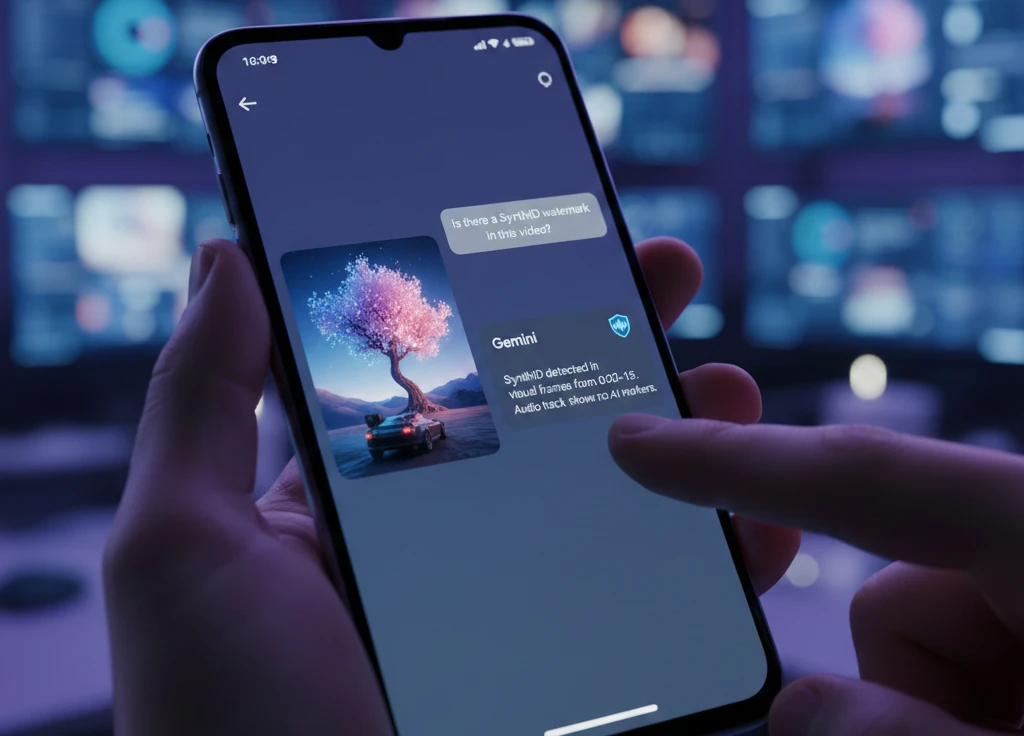
- “Is there a SynthID watermark in this video?”
- “@synthid verify this content.” (The @synthid shortcut is the fastest way to bypass the “chatty” nature of the AI).
Step 4: Interpret the Results
Gemini won’t just say “Yes” or “No.” It provides a breakdown. In my experience, it often says something like:
“SynthID detected in the audio track from 0:04 to 0:12, but no watermark found in the visual frames.”
This level of granularity is vital. It tells you if the entire video is fake or if someone just swapped the audio with an AI-generated clone.
The Tech Under the Hood: What is SynthID?
Unlike traditional watermarks that sit on top of the image (like a logo), SynthID is embedded into the pixels themselves—specifically in the frequency domain.
Google DeepMind engineered this to be “imperceptible” to humans but “highly resilient” to common edits. If you re-color the video, add a filter, or shrink the resolution, the mathematical pattern of the watermark remains.
Does it work for all AI videos?
No. This is the “cynical editor” moment: SynthID is not a magic bullet for all deepfakes.
- The Good: It is nearly impossible to remove without destroying the video quality itself.
- The Bad: It only detects what it knows. If a video was made using OpenAI’s Sora or Runway Gen-3, Gemini will likely return a “No watermark detected” result. This doesn’t mean the video is “real”; it just means it wasn’t made by Google.
Comparing AI Video Verification Tools
| Tool | Accuracy (Google Content) | Accuracy (Third-Party) | Resilience to Edits | Best For |
| Gemini (SynthID) | 99% | Very Low | High | Verifying Google/Veo clips |
| C2PA Metadata | High (if present) | High | Low (easily stripped) | Checking source history |
| InVID WeVerify | Moderate | Moderate | Moderate | Journalists/Forensics |
The “Trust Gap” Problem
In my time covering AI at Wired and TechCrunch, I’ve seen countless “transparency” initiatives fail because they rely on voluntary participation.
Google’s integration of SynthID into Gemini is a step in the right direction, but let’s be real: it’s a walled garden. Google can detect Google. This creates a false sense of security. A user might check a video in Gemini, see “No AI detected,” and assume the video is authentic—when in reality, it was just made on a different platform.
The future of digital reality depends on interoperability. Until Google, OpenAI, Meta, and Adobe all agree on a single, un-strippable standard (like the C2PA is trying to be), we are just playing a high-stakes game of “Whack-A-Mole.”
My verdict: Use Gemini to verify Google-generated content, but treat every “No watermark found” result with a massive grain of salt. If it looks too perfect to be true, it probably is.
FAQ: People Also Ask
Can I verify a screen recording of an AI video?
Yes. Because SynthID is embedded in the visual patterns, a screen recording usually preserves enough of the “signal” for Gemini to detect it. However, the accuracy drops if the recording is low-quality or heavily cropped.
Why does Gemini say “No watermark detected” for a video that clearly looks like AI?
There are three likely reasons:
- The video was created by a non-Google AI (like Runway, Pika, or Sora).
- The video has been so heavily compressed or edited that the signal was lost.
- The video is “real” but uses filters that mimic the AI aesthetic.
Is there a limit to how many videos I can check?
Yes. Most users report a daily quota of approximately 20 checks per day. If you are a power user or journalist, you may need a Workspace account or wait for the dedicated “SynthID Detector” portal rollout.
Does verifying a video in Gemini store my data?
By default, your uploads are saved to your Gemini Apps Activity. If you are handling sensitive or private footage, you should go into your settings and turn off “Gemini Apps Activity” to ensure the data isn’t used for future model training.
The Bottom Line
The Gemini app’s video verification is a “First-Response” tool, not a final verdict. It is excellent for catching “Veo” generated content and providing a layer of transparency that was previously missing from the mobile experience.
What should you do next?
Stop taking “viral” videos at face value. The next time you see a clip that feels “off,” run it through the Gemini app. It takes 30 seconds and might save you from sharing a digital lie.
Have you caught a fake video using Gemini yet? Or did the tool fail to see through a clear deepfake? Drop your experience in the comments below—let’s see how “resilient” this tech actually is.
