


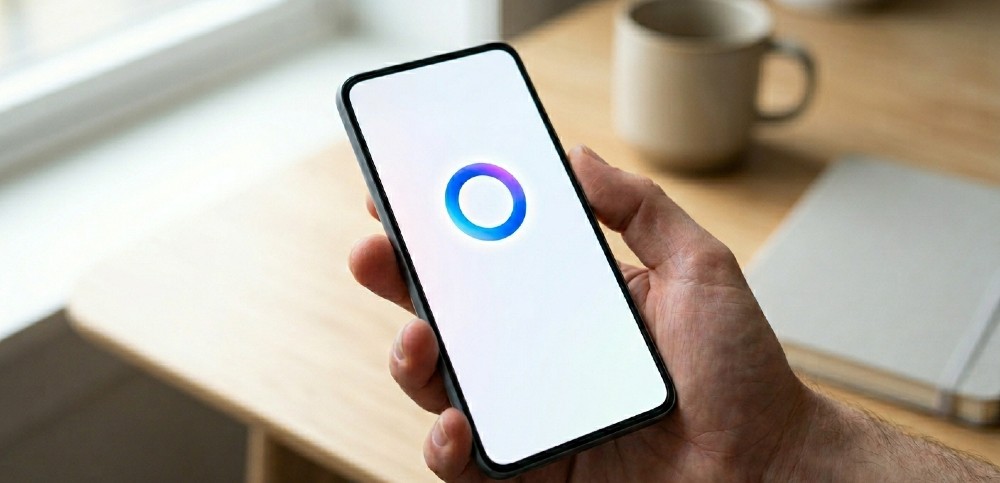
Most people stumble into this problem the same way: they’re in a quiet meeting, or just hate talking to their phone, and they discover “Hey Meta” isn’t optional — it’s the default. The good news is it absolutely isn’t mandatory. You can use Meta AI through text, tap access, and direct app triggers, and in some cases it works even faster than the voice route.
- Typing directly into the Meta AI search bar inside WhatsApp, Instagram, Facebook, or Messenger is the fastest way to use Meta AI without any voice command.
- Best for people who want hands-free-free interaction (typing preferred), work in noise-sensitive environments, or use Meta AI on desktop where “Hey Meta” doesn’t even apply.
- The single most important step: look for the blue circle or the “Ask Meta AI” bar — that’s your direct entry point in every Meta app.
- Biggest mistake: hunting through settings trying to “disable” Hey Meta instead of just ignoring it and typing — you don’t need to turn it off to use the text path.
- If Meta AI’s capabilities feel limited for your use case, Perplexity’s Comet AI browser handles complex research queries with a fully text-first interface.
Why “Hey Meta” Exists and Why You Don’t Have to Use It
Meta built the wake word primarily for Ray-Ban Meta smart glasses — hands-free was a genuine design requirement there. When they rolled Meta AI deeper into WhatsApp, Instagram, Facebook, and Messenger, the voice trigger came along for the ride. The result? A lot of people assume voice activation is the only entry point.
It’s not. Meta AI is fundamentally a text model. Voice is just one input layer sitting on top of it. Every place you can say “Hey Meta,” there’s a tap-or-type path that does the same thing — often with less friction because you can edit before sending and get formatted responses that are easier to read than voice playback.
The why matters here: understanding that Meta AI is accessed through the app’s search or chat infrastructure (not exclusively through voice) changes how you look for the entry point. You’re not looking for a microphone. You’re looking for a text field.
How to Use Meta AI in WhatsApp Without Any Voice Command
WhatsApp is where most people first encounter Meta AI, and it’s also where the text-only path is most obvious once you know where to look.
The direct route:
Open WhatsApp. At the top of your chats list, you’ll see a search bar. Tap it. Instead of typing a contact name, type your question or prompt. WhatsApp now surfaces Meta AI responses directly in that search layer. You’ll see a “Ask Meta AI” prompt appear — tap it, and you’re in a full Meta AI chat without saying a single word.
Alternatively, Meta AI has its own dedicated chat entry. Look for the blue circle icon in the bottom navigation or top right corner (this varies slightly by phone OS and app version). Tapping that opens a standalone Meta AI conversation thread — exactly like a regular WhatsApp chat, except your messages go to the AI, not a person.
The standalone chat works like any messaging interface. Type, send, read. You can share images into it for analysis, ask follow-up questions, and the conversation thread stays there so you can scroll back. One thing most people miss: you can also add Meta AI to existing group chats by typing @Meta AI followed by your question. Nobody else in the group needs to do anything. It responds inline, visible to the whole group.
What to expect in practice: Response times are fast — usually 2-5 seconds for text queries. Image analysis takes a bit longer, around 8-12 seconds. The conversation doesn’t persist across sessions the way a human contact’s chat history does, so don’t rely on it remembering what you discussed a week ago.
Using Meta AI in Instagram Without the Wake Word
Instagram’s implementation is slightly different but just as accessible without voice.
Tap the search (magnifying glass) icon at the bottom of the app. At the top of the search page, there’s a bar that says “Ask Meta AI anything.” That’s it. Tap it, type your question, and you’re using Meta AI entirely through text.
You can also access it through Instagram DMs. Open your messages, look for the Meta AI contact (marked with the blue AI circle), and tap to start a chat. This functions identically to the WhatsApp standalone thread — pure text interface, no voice required.
One Instagram-specific use case that’s actually underrated: asking Meta AI about content you’re looking at. While viewing a reel or post, you can tap the share icon and find a “Ask Meta AI” option in some interface versions. This lets you send visual context directly to the AI and type your question about it. No talking involved.
The catch with Instagram’s implementation — it’s more tightly integrated with Meta’s social features, so you’ll occasionally see it try to recommend Instagram content or people to follow alongside your AI response. That’s not a bug, it’s intentional behavior. Just scroll past it.
Facebook and Messenger: Text-First Meta AI Access
On Facebook (web or mobile), Meta AI shows up in the search bar at the top. Click or tap the search field, and instead of searching for people or posts, type a question. The “Ask Meta AI” option appears at the top of the results dropdown. Select it and you’re in a full AI chat interface, desktop or mobile, no microphone anywhere in sight.
Messenger has a dedicated Meta AI chat built directly into the app. It’s pinned at the top of your conversations list — the one with the blue swirl icon and the name “Meta AI.” Tap it. Start typing. That’s the entire workflow.
Messenger also supports a slash-trigger method in group chats: type /ai followed by your prompt and Meta AI responds inline. This is particularly useful in group planning conversations where you want to pull in AI-generated suggestions without leaving the chat.
For desktop users specifically, “Hey Meta” was never an option to begin with — the voice wake word only works on mobile and Ray-Ban glasses. So if you’re on desktop, you’ve been using the text-only path by default this whole time.
Meta Ray-Ban Glasses: Using Meta AI Without Saying Hey Meta
This is where it gets a bit more nuanced because the glasses were literally designed for voice-first interaction. But there are still workarounds.
The Meta View app (the companion app for Ray-Ban Meta glasses) has a chat interface where you can type to Meta AI directly. Open the app, navigate to the AI section, and type your prompts. The responses display in the app, not through the glasses speaker. Not as seamless as the glasses experience, but it gets you access without activating the microphone.
You can also change the wake word sensitivity in the app settings — under your glasses device settings, there’s a voice activation option. You can’t replace “Hey Meta” with a tap-only trigger on the glasses themselves (at least not as of mid-2026), but lowering sensitivity means accidental triggers drop significantly.
Honest truth about the glasses: the text workaround through the app defeats some of the convenience argument for the hardware. If you bought the glasses specifically to avoid looking at your phone, typing in the app sends you right back to the phone anyway. For glasses users who want minimal voice use, the sweet spot is using Hey Meta only for quick queries and the app for anything requiring longer, more complex prompts.
The Meta AI Website: Pure Text, No Voice Involved
Meta has a standalone web interface at meta.ai. This is probably the cleanest text-only experience they offer — no voice features, no wake word, just a chat interface similar to what you’d get with ChatGPT’s app ecosystem or Google’s Gemini web interface.
Go to meta.ai, log in with your Facebook or Instagram account (or use it with limited functionality without logging in), and start typing. The interface is straightforward — prompt field at the bottom, responses in the main window, image generation available through the “Imagine” shortcut.
This is the version I’d point someone to if they just want to evaluate Meta AI’s capabilities without dealing with any of the mobile app integration stuff. It’s also significantly more useful for long-form tasks — drafting documents, writing longer prompts, comparing multiple AI responses side-by-side — because you’re working on a full screen with a keyboard, not a mobile keyboard.
One thing the web interface does better than the app versions: it handles image generation more reliably. Type “imagine” followed by a description and Meta AI generates an image using their Emu model. In the mobile apps, this feature sometimes gets buried or inconsistently surfaced depending on your account region and app version.
Disabling or Limiting “Hey Meta” If You Want It Gone Entirely
You don’t have to disable it to avoid it — but if the wake word is triggering accidentally, here’s how to reduce that.
On mobile (iOS and Android), the Hey Meta setting lives inside individual Meta app settings, not your phone’s global voice assistant settings. In WhatsApp: go to Settings → Privacy → Meta AI. In the Meta View app for glasses: go to device settings and look for “Voice Activation.”
As of 2026, you can’t fully disable Meta AI’s existence within the apps — it’s baked into the core UI. What you can control is whether voice activation is enabled on devices that support it. On mobile apps like WhatsApp and Instagram, Hey Meta only activates if you’ve explicitly enabled it through your phone’s assistant settings, so if you’ve never set that up, it’s already effectively off for voice.
The text-based Meta AI (the search bar and chat interface versions) doesn’t have a disable option because Meta treats it as a core app feature, similar to how you can’t remove Google from Chrome’s address bar. If that’s a hard blocker for you, Google Gemini is available as a fully separate app that doesn’t integrate into social platforms the same way.
What Meta AI Is Actually Good At (and Where It Falls Short)
Worth being straight about this, since access method doesn’t matter if the tool isn’t useful for what you need.
Meta AI handles casual Q&A, quick factual lookups, and conversational tasks well. It’s genuinely solid for summarizing things, drafting short messages, generating social media captions, and basic image generation. The integration inside WhatsApp and Instagram means you don’t have to leave apps you’re already using — that’s a real convenience advantage.
Where it struggles: deep research tasks, highly technical questions, and anything requiring cited sources. Meta AI doesn’t reliably surface links to its information sources, which makes it harder to verify answers. For research-heavy use cases, tools like Perplexity or Google Gemini’s search-grounded mode are better suited.
The image generation is decent but not best-in-class. Midjourney and DALL-E 3 produce better results for anything requiring precision or artistic quality. Meta’s Emu model is good enough for quick social content, not good enough if image quality is the main goal.
Multi-step reasoning — the kind needed for complex planning, coding help, or nuanced analysis — is where Meta AI currently lags behind Claude, GPT-4o, and Gemini Advanced. It’s not that it can’t do these things, it just tends to give shallower answers on harder problems.
Real talk: Meta AI’s biggest strength is availability. If you’re already in WhatsApp talking to someone and want to quickly look something up, being able to tap the search bar and get an AI answer in 3 seconds is genuinely useful. It’s not meant to replace a dedicated AI tool — it’s meant to handle the quick stuff without switching apps.
How to Get Better Responses From Meta AI (Text Interface Tips)
The way you write your prompts makes a bigger difference than most people realize. A few patterns that consistently produce better output:
Be specific about format. “Summarize this in 3 bullet points” works better than just “summarize this.” Meta AI responds well to format instructions because they’re unambiguous.
Give context upfront. “I’m planning a birthday dinner for 8 people in Washington DC, budget around $600 total — suggest restaurants” gets a much more useful response than “good restaurants in DC.” Context at the start of the prompt beats context added at the end.
Use follow-up questions. Meta AI in the chat interface retains context within a session. If the first answer isn’t quite right, follow up with “make it shorter” or “give me a more formal version” and it’ll adjust. Most people abandon after the first response when one more message would have gotten them what they needed.
Image prompts for generation: describe the style, not just the subject. “A golden retriever” gives you a generic dog photo. “A golden retriever running through tall grass, warm late afternoon light, motion blur on the grass, photorealistic” gives you something actually usable.
One pattern that trips people up — asking Meta AI to search the web and expecting cited sources. It doesn’t work like Perplexity. It has a knowledge cutoff and will sometimes confidently answer questions about recent events based on training data that may be outdated. For anything time-sensitive (current news, recent product releases, live prices), treat its answers as a starting point to verify, not a final source.
Meta AI vs Other AI Assistants: Quick Decision Framework
You don’t need a 500-word comparison. Here’s the actual decision:
Use Meta AI if: You’re already inside WhatsApp, Instagram, Facebook, or Messenger and want a quick answer without switching apps. Or you want fast image generation for social content.
Use Google Gemini if: You want AI that’s integrated with Gmail, Google Docs, or Google Search results. Better for productivity workflows tied to Google’s ecosystem. The Gemini market share growth reflects real adoption across professional use cases.
Use ChatGPT if: You need access to the widest plugin and integration ecosystem. The ChatGPT integration network is still the largest for connecting AI to external tools and workflows.
Use Claude or Gemini Advanced if: You’re doing complex multi-step reasoning, long document analysis, or nuanced writing tasks.
Use Perplexity if: You need cited, source-linked answers for research. Especially useful for fact-checking and current events. If you want a dedicated AI browsing experience, Perplexity’s Comet browser builds that research capability directly into the browsing layer.
Use AI agents over chatbots if: Your use case involves automating multi-step business tasks, not just answering questions.
Meta AI isn’t trying to beat any of those tools at their specific strengths. It’s optimizing for in-context availability inside social apps — and for that specific job, it’s ahead.
Quick Access Setup Checklist
Before you close this: make sure you can actually reach Meta AI fast the next time you need it.
- In WhatsApp: tap the search bar once to confirm the “Ask Meta AI” option appears. If it doesn’t, update your app — this feature rolls out with app updates.
- In Instagram: tap the magnifying glass icon and confirm the “Ask Meta AI” bar is at the top of the search screen.
- In Facebook app: tap the search field at the top and confirm the AI option appears in the dropdown.
- On desktop: bookmark meta.ai directly. It takes 10 seconds now, saves you hunting for it later.
- In Messenger: scroll to the top of your chats and confirm Meta AI is pinned there. If it’s not pinned, search for it once in your contacts and it’ll surface.
That’s the entire setup. No downloads, no new accounts, no settings menus. Every path to Meta AI through text is one or two taps into apps you already have open.
