


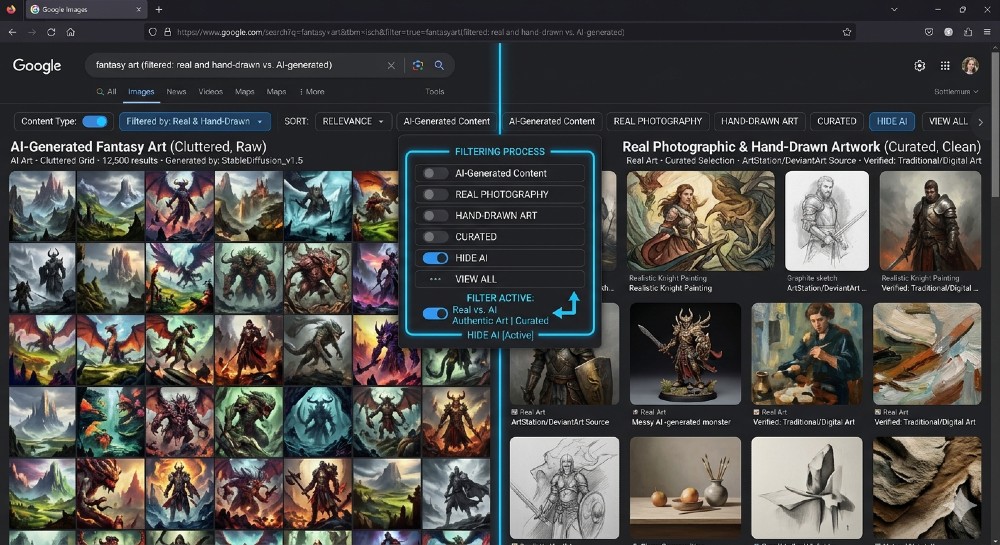
Google Images is drowning in AI-generated art right now. You search for a reference photo, a painting style, or an illustrator’s name — and half the results are synthetic slop from Midjourney, DALL-E 3, Stable Diffusion, or whatever image generator dumped its output onto DeviantArt last Tuesday. If you need real photography, genuine human-made illustrations, or actual artist portfolios, you need to know how to sort AI art out of Google search before you waste another hour scrolling.
The fix isn’t one button — it’s a combination of Google’s native filters, search operators, and some smarter platform choices that take about 10 minutes to set up.
- The fastest method is using Google’s “Filters” menu in Google Images combined with the
-AIand-generatedsearch operators to immediately strip most synthetic results. - Best for artists, designers, researchers, and anyone sourcing real reference images; skip this if you’re actually looking for AI art (in which case, search Civitai or Lexica directly instead).
- The single most important step: add
-site:deviantart.comif you want to avoid the platform where AI output is currently flooding the most. - Biggest mistake: relying on the “Creative Commons” filter alone — it does not block AI art, it only filters by license type, and tons of AI images are uploaded with CC licenses.
- If Google Images keeps frustrating you, Behance and ArtStation have dedicated AI-content filters that actually work reliably as of 2026.
Why Google Search Is Flooded With AI Art Right Now
Before you start filtering, it helps to understand why this is happening — because the fix depends on the cause.
Google’s image index doesn’t distinguish between human-made and AI-generated images by default. The Googlebot crawls a JPG, reads the metadata and page context, and ranks it by relevance signals like alt text, page authority, and backlinks. An AI image uploaded to a high-DA platform with good SEO metadata ranks just as well as a genuine photograph or painting. And since AI generators can produce thousands of images per hour, the volume of synthetic content hitting indexed platforms like Pinterest, DeviantArt, Tumblr, and WordPress blogs has grown faster than Google’s ability to filter it.
The C2PA (Coalition for Content Provenance and Authenticity) standard is supposed to solve this long-term — Adobe Firefly, Microsoft Bing Image Creator, and Google’s own Imagen now attach machine-readable metadata to generated images. But compliance is voluntary, and most images are already stripped of that metadata the moment someone screenshots, compresses, or re-uploads them. So don’t wait for a systemic fix. Use the manual methods below.
The Google Images Filter Method (Fastest Starting Point)
This is where most people should start. It won’t catch everything, but it removes a significant chunk of AI output in under 2 minutes.
Step 1: Run your search in Google Images. Type whatever you’re looking for — “watercolor landscape painting,” “product photography white background,” “portrait reference human face” — whatever applies.
Step 2: Open the Tools menu. Under the search bar, click “Tools.” You’ll see options for Size, Color, Usage Rights, Type, and Time. The “Type” dropdown is the one most people miss. Set it to “Photo” if you want real photographs. This doesn’t filter AI art entirely, but it strips out a lot of synthetic illustration-style results.
Step 3: Use the Time filter. Set it to “Past year” or “Past month.” AI-image flooding has accelerated since late 2023. Older results skew toward real photography more heavily. Not foolproof, but it helps narrow the pool.
Step 4: Add search operators to your query. This is where the real filtering happens. Tack these onto your search string:
watercolor landscape painting -AI -generated -midjourney -"stable diffusion" -"ai art"
Each of those negative operators removes pages where those terms appear in the filename, alt text, or surrounding page copy. You can add -"made with AI" and -"created by AI" too. It’s not elegant, but it works.
Step 5: Filter by Usage Rights if sourcing for projects. Set Usage Rights to “Creative Commons licenses” or “Commercial & other licenses.” This won’t block AI images (as I warned in the Quick Verdict above), but combined with Steps 3 and 4, you’re layering filters that progressively reduce synthetic results.
Real talk: this process catches maybe 60-70% of AI art in my experience. The remaining 30% gets through because it was uploaded without AI-identifying metadata or keywords. For that, you need platform-level filtering.
How to Block Specific AI Art Platforms With Site Operators
The quickest way to remove AI-heavy sources is to exclude them directly using Google’s -site: operator. Here’s the shortlist of platforms where AI art volume is highest right now:
your search term -site:deviantart.com -site:pixabay.com -site:pexels.com -site:freepik.com
Wait — Pixabay and Pexels? Yes. Both platforms have been flooded with AI-generated stock since 2023 and their internal AI-content filters have significant gaps. Freepik explicitly sells AI-generated assets as a feature. If you need real photography, you’re better off sourcing from Unsplash (which has a stricter submission review), Getty Images, or Stocksy.
DeviantArt is the trickiest one. It has a genuine human artist community, but it also has enormous AI-generated image galleries that DeviantArt itself created with DreamUp (their AI tool). Excluding the whole domain is blunt — you lose access to real artists’ work too. The smarter move is to search within DeviantArt directly using their own filter (covered below).
For Pinterest: Pinterest’s image SEO is strong, which means it surfaces constantly in Google Images. Most Pinterest images don’t identify themselves as AI-generated in their metadata. The -site:pinterest.com operator is worth adding if you want cleaner results, though you’ll lose a lot of legitimate mood board content.
Platform-Level AI Art Filters That Actually Work
If you need reliable human-made art, skipping Google Images for the initial search and going directly to platforms that have functional AI filters is the smarter approach.
ArtStation ArtStation (owned by Epic Games) added a dedicated AI art filter in 2023 after significant pushback from their professional artist community. You can toggle “Hide AI Art” in search settings. As of mid-2026, this filter is enforced through both metadata review and community reporting. For concept art, game art, and film production reference, ArtStation is currently the cleanest source of verified human work.
Behance Adobe’s Behance platform requires creators to disclose AI-generated content in project submissions. Projects flagged as AI-assisted are tagged and can be filtered out in search. The enforcement is imperfect (self-disclosure is voluntary), but the professional context of Behance — portfolio work aimed at clients — means the incentive to fake human authorship is lower than on general sharing platforms.
DeviantArt Within DeviantArt itself, you can use the search filter “Exclude AI art” which appeared in the sidebar filters in 2024. It’s more reliable than trying to block the domain from Google. The filter is imperfect because it relies on creator disclosure, but it’s better than nothing.
Getty Images and Shutterstock Both Getty and Shutterstock have AI-generated content sections that are explicitly labeled and separated from traditional stock. Shutterstock sells AI-generated images through their own “Shutterstock.AI” generator. If you search their main catalog and filter by “Authentic” (Getty) or use contributor type filters, you can mostly exclude synthetic content. Expensive for casual use, but reliable for commercial projects.
Flickr Flickr has required AI-generated image disclosure since 2024 and has AI-content tags that you can exclude via search filters. For real photography — street photography, travel, portrait — Flickr remains one of the cleaner sources because its core user base is camera enthusiasts, not generative AI users.
The Search Operator Stack (Copy-Paste Ready)
Here’s what to drop into Google Images when you need genuinely human-made results fast. Customize the first part; keep the rest.
For real photography:
[your subject] photo -AI -generated -midjourney -"stable diffusion" -"dall-e" -site:freepik.com -site:pixabay.com filetype:jpg
For human-made illustration or digital art:
[your subject] illustration -AI -generated -midjourney -"stable diffusion" -"ai art" -"ai generated" -site:freepik.com
For painting or traditional art:
[your subject] painting oil watercolor -AI -generated -"made with ai" -site:deviantart.com
The filetype:jpg operator is a subtle one — AI image generators often output PNG by default, especially from Midjourney (which uses PNG) and DALL-E 3 (which uses PNG/WebP). JPG is still more common for real photography. This isn’t a reliable filter on its own, but stacked with others, it shifts the results slightly.
Why the “Verbatim” Search Mode Helps
Google’s default search applies synonyms, related concepts, and AI-enhanced query expansion. This often pulls in more AI art because the query expansion matches synthetic images tagged with related keywords. Switching to Verbatim mode forces Google to match your exact search string.
To enable it: click “Tools” under the search bar, then “All Results,” and switch to “Verbatim.” Now Google matches your search terms exactly instead of interpreting them. Combine this with the operator stack above and you’ve significantly tightened what gets shown.
The downside: you may miss legitimate results that use slightly different terminology. It’s a trade-off worth making when you’re specifically trying to source real artwork.
When Google Images Just Isn’t the Right Tool
Here’s what nobody tells you: for serious art sourcing in 2026, Google Images is a last resort, not a first stop. It’s a general-purpose web image index, not a curated art database. The filtering tools exist, but they’re bolted on after the fact.
If you’re an illustrator looking for references, a game developer sourcing concept art, or a researcher studying visual art movements, the platforms built for professional artists are faster and cleaner:
- ArtStation — concept art, game/film production work, professional portfolios
- Behance — cross-discipline creative portfolios, graphic design, photography
- Flickr — photography, street photography, nature
- Dribbble — UI/UX design, branding, digital illustration
- Unsplash — editorial and commercial photography (stricter review than Pixabay)
- The Met’s Open Access collection — 470,000+ digitized artworks, zero AI, public domain
For researching specific living artists or art styles, searching directly on Instagram (which has an AI-content policy as of 2025) or the artist’s personal website gives you cleaner results than Google Images ever will.
How AI Art Detection Tools Help (and Where They Fail)
Some people try to solve this problem at the image level rather than the search level — using AI detection tools to identify synthetic images after they find them. Tools like Hive Moderation, AI or Not, and Illuminarty claim to detect AI-generated images with 80-90% accuracy.
The honest truth: these tools work reasonably well on images generated by current major models (Midjourney V6, DALL-E 3, Stable Diffusion XL) but fail more often on older generations, heavily post-processed images, and images that have been run through face-swap or style-transfer tools that partially preserve real photo data. They’re useful as a secondary check, not a primary filter.
The part that trips most people up: these detectors also flag heavily-processed real photographs as AI-generated. Run a real photo through a heavy Lightroom preset or an AI upscaler like Topaz Gigapixel, and detection tools often read it as synthetic. Don’t treat a “detected” result as definitive — cross-check with reverse image search to find the original source.
For reverse image search, Google’s own reverse image search (click the camera icon in Google Images) still works well. TinEye is better for tracking image origin and history. If you find the original upload source and it traces back to Midjourney, Civitai, or an AI art gallery platform, you have your answer.
Sorting AI Art Out of Google Web Search (Not Just Images)
Most of this article focuses on Google Images, but AI-generated articles about art — blog posts written by AI about painting techniques, AI-written artist biographies, AI-generated gallery pages — are also cluttering text search results.
The same negative operators apply:
Rembrandt painting techniques -AI -"ai-generated" -"written by AI"
More effective: use Google’s search operators to prioritize authoritative sources.
site:edu OR site:museum OR site:org Rembrandt painting techniques
That forces results from academic institutions, museums, and nonprofits — where AI slop is less prevalent because domain authority in those spaces comes from real human expertise and institutional credibility, not content volume.
For art history research specifically, JSTOR, the Getty Research Institute’s website, and the Smithsonian’s online collections are more reliable than anything you’ll find through general Google search right now.
Setting Up a Repeatable Filter Workflow
If you’re doing this regularly — sourcing images for client work, research, or creative projects — building a repeatable system saves time.
Option 1: Bookmarked Google Image search URLs. Google Images saves filter settings in the URL. Run your optimal filtered search once, copy the URL, and bookmark it. Next time, you load the bookmark and just change the search term. Takes about 30 seconds.
Option 2: Browser extension + custom search engine. Create a custom search engine in Chrome or Firefox that pre-loads your operator stack. Go to Settings > Search Engines > Manage, add a new engine with:
https://www.google.com/search?tbm=isch&q=%s+-AI+-generated+-midjourney
Set a keyword trigger (like “img” or “art”) and you can type art watercolor landscape in your address bar and get pre-filtered results instantly.
Option 3: Use specialized platforms as your default. Genuinely, the 10-minute-per-project approach is to stop using Google Images as your starting point for art sourcing. Set ArtStation or Behance as your first stop. Use Google Images only when you need broad coverage or can’t find what you need in curated databases.
The Problem With AI Art on Pinterest Specifically
Pinterest deserves its own section because it’s one of the most aggressively indexed sources in Google Images and it has almost no AI-content enforcement.
Pinterest’s algorithm rewards engagement (saves, clicks) more than authenticity, which means viral AI images — often fantasy landscapes, unrealistic body ideals, impossibly detailed architecture — surface constantly. The platform has stated a policy against AI art that isn’t disclosed, but enforcement is nearly non-existent based on what I’ve seen across accounts over the past 18 months.
If you’re using Pinterest for mood boards or visual research, the -site:pinterest.com operator in Google Images is blunt but effective. Within Pinterest itself, there’s no reliable AI filter as of June 2026. You’re on your own — which means manually checking image sources (right-click > Search Image) for anything that looks suspicious.
The telltale signs on Pinterest specifically: images with no clear source website, descriptions that use vague keywords without a creator name, and visual details that look Midjourney-typical (dramatic lighting, hyper-detailed clothing textures, impossible facial symmetry).
What’s Coming: Google’s Own AI Content Labels
Google announced in late 2024 that it would start surfacing C2PA content credentials in Search and Google Images for images that carry verified AI-generation metadata. As of mid-2026, this is partially rolled out — you’ll sometimes see a small “AI-generated” badge on images in Google Images search results when the image carries verifiable provenance data from tools like Adobe Firefly or Google’s own Imagen generator.
The limitation: it only shows for images that (a) were generated by tools supporting C2PA, (b) had metadata preserved through upload, and (c) come from platforms that transmit that metadata to Google. That’s a small subset of the total AI image volume online.
The bigger shift coming is Google’s Search Generative Experience integration with content authenticity signals — where verified human authorship may become a ranking factor, not just a label. That would organically push AI-generated content down in rankings over time. But “coming soon” isn’t “here now.” Use the manual methods above until the infrastructure catches up.
Uncensored AI Art Search (If You Want the Opposite)
If you’re actually searching for AI-generated images — for research, workflow reference, or finding out what specific models produce — Google is still a poor tool for that too, just for different reasons. Google’s SafeSearch and content policies filter out a significant portion of AI-generated art that lives on platforms outside mainstream norms.
For that use case, dedicated AI image search platforms like Lexica (Stable Diffusion results), Civitai (model-specific outputs), and PromptHero give you much cleaner AI art search with metadata about which model and prompt generated each image.
If you’re researching private or uncensored AI image generation more broadly, this Venice AI review covers how that platform handles image generation differently from mainstream tools, and this comparison of Venice AI vs ChatGPT vs Claude breaks down the practical differences for image-related workflows.
For people building or running local image generation setups where they control the output entirely, this guide to uncensored local image AI model setup covers the full process, and this overview of uncensored AI image generation and private setup explains the privacy and control tradeoffs. For anyone evaluating whether Venice AI’s free tier is worth using, this breakdown of Venice AI free tier limits and models gives you the practical numbers.
What to Do This Week
Run your next image search with the full operator stack from the “copy-paste ready” section above and see how dramatically the results change. Take 15 minutes to set up the custom search engine shortcut in your browser — it’ll pay back that time within the first few uses. If you source art or photography regularly for professional work, create an account on ArtStation and Behance and start those searches there first. Google Images becomes your fallback, not your default.
The AI art flood isn’t slowing down. But the filtering tools exist, the platform-level options are improving, and knowing how to sort AI art out of Google search now means you’re not fighting the algorithm blind.
