


| Question | Answer |
|---|---|
| Can ChatGPT watch YouTube videos? | No — not directly from a link |
| Can you upload a video file to ChatGPT? | Yes — on paid plans (Plus/Pro) |
| Does ChatGPT actually “watch” the video? | No — it samples frames and reads audio |
| Can it summarize a video? | Yes — with the right input |
| Best free workaround? | Get the transcript, paste it in |
| Best paid workflow? | Upload short clip + ask specific questions |
ChatGPT cannot watch videos the way a person does. It does not press play and follow along. What it can do — depending on your plan and how you feed it the content — is analyze transcripts, process extracted frames, and pull meaning from audio text. That is a real capability. It is just different from what most people picture when they ask the question.
Why People Are Confused About This
The confusion makes complete sense. ChatGPT can look at images you upload. It can browse the web on paid plans. It can read PDFs and long documents. So when someone drops a YouTube link into the chat and asks “what’s this video about?” — it feels like it should just work.
It does not.
When you paste a YouTube link into ChatGPT, the model may pull the video’s title and description from the page — public metadata that anyone can read. But it cannot reach inside the video and hear what was said, see what was shown, or follow the content over time. The actual video stream is inaccessible.
This surprises a lot of people because the product feels multimodal — and it is, for images and text. Video is a different challenge. A video is not a static frame. It is thousands of frames playing in sequence with audio running alongside them, and that temporal flow is still not something ChatGPT natively processes the way a human brain does.
What ChatGPT Can and Cannot Do With Videos
What it cannot do:
Stream a video from a URL. Paste a YouTube, Netflix, or Vimeo link and ChatGPT cannot access the actual content. No plan changes this for YouTube because YouTube specifically blocks external access to video content through its systems.
Process long video files reliably. Even on paid plans where video upload is technically available, large files — anything over a few minutes or several hundred megabytes — frequently fail or produce incomplete results. File size limits and token constraints are real practical barriers.
Track individuals across frames. A real-world test published in January 2026 (by Tech Me Tan) showed that ChatGPT could correctly identify a runner’s clothing and bib number in a prominent opening frame, but failed when asked to locate a different participant who appeared more briefly. The model sees frames as individual images, not a continuous scene with persistent identity tracking.
Detect small or fast-moving elements. In the same test, ChatGPT could not identify birds moving in the background of a video clip. Background motion, subtle gestures, and quick visual details get missed.
Interpret emotion or editing style. It cannot tell you that a scene felt tense because of fast cuts, or that a speaker seemed nervous because of their body language. These require continuous temporal understanding that the current model architecture does not support natively.
What it can do:
Analyze a transcript. This is where ChatGPT genuinely shines for video content. Give it a clean text transcript — even a long one from a two-hour lecture or podcast — and it can summarize, pull out key points, answer questions about specific sections, turn it into a blog post, extract action items, or reformat it as social media captions. The quality here is good.
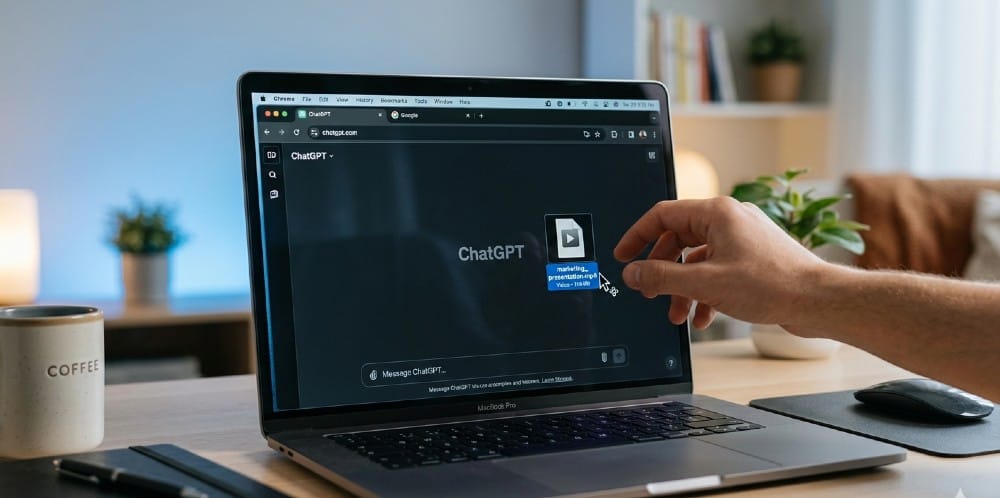
Process uploaded video frames. On ChatGPT Plus and Pro plans, you can upload short video clips and the model will sample frames from it. It can describe what it sees, identify objects and text on screen, and answer basic questions about the visual content. This works best for short clips under five minutes with clear, static subjects. Think: a screen recording, a product demo, a whiteboard explanation.
Read on-screen text. If your video contains slides, captions, UI elements, or text overlays, ChatGPT can extract and work with that text when given extracted frames or a short clip upload. This is useful for screen recordings, tutorial videos, and presentation recordings.
Help with everything around the video. Before the video exists — it can write scripts, outlines, storyboards, and voiceover text. After the video exists — it can write descriptions, SEO titles, social captions, and chapter timestamps if given the transcript. This pre- and post-production role is where it adds the most consistent value.
How ChatGPT Processes Video Technically (The Simple Version)
When you upload a video file to ChatGPT on a paid plan, the model does not press play. What happens is closer to this:
The video gets broken down into a series of still frames — individual snapshots taken at regular intervals. These frames are processed the same way ChatGPT processes any uploaded image. The audio track, if analyzed, gets converted into text through a transcription process. The model then reasons across those extracted frames and text, not across the continuous video stream.
This is called frame-based processing. It is also how Google’s Gemini handles video through its API, though Gemini has a much larger context window that lets it handle longer videos without losing information partway through.
The practical implication: ChatGPT’s video understanding is frame-aware, not context-aware. It can see what is visually obvious in individual moments. It cannot follow a narrative the way you can, notice something that was subtly set up in an earlier scene, or understand the rhythm and pacing of editing choices.
The 3-Step Workflow That Actually Works (Free)
Most people trying to get ChatGPT to help with a YouTube video do not need to upload any file at all. The transcript approach works well and costs nothing.
Here you can check can AI transcribe audio.
Step 1: Get the transcript.
For YouTube videos, open the video, click the three dots below the player, and select “Show transcript.” You get a full text version of everything said in the video, with timestamps. Copy it.
If the video does not have an auto-generated transcript — some older or non-English videos do not — you can use a free tool like YouTube’s own auto-caption system (enable it in settings), or run the audio through a free transcription service. OpenAI’s Whisper model, which is freely available, is one of the most accurate options for this.
Step 2: Clean it up slightly.
YouTube transcripts include timestamps and sometimes odd formatting. You do not need to remove all of this, but deleting the timestamp numbers makes the text flow better for ChatGPT to read. Takes about two minutes for most videos.
Step 3: Paste it into ChatGPT with a specific prompt.
This is where most people go wrong — they paste the transcript and just write “summarize this.” Specific prompts get much better results. Some examples:
- “Summarize this in five bullet points, focusing on the main argument and any specific recommendations made.”
- “This is a transcript from a marketing tutorial. Extract every tactical step mentioned and write them as a numbered checklist.”
- “Turn this transcript into a 600-word blog post. Use a conversational tone and add a practical example for each main point.”
- “What questions does this video answer? List them with the approximate timestamp from the transcript.”
The output quality with a clean transcript and a specific prompt is genuinely useful — often better than the video itself for retention and reference.
The Paid Workflow: When to Actually Upload a Video File
If you have ChatGPT Plus or Pro and want to upload a video file directly, here is when it makes sense and when it does not.
It makes sense for:
- Short screen recordings (under 5 minutes) — “Here’s my onboarding flow, what’s confusing about the UX?”
- Whiteboard or presentation recordings where you want the on-screen text extracted
- Short product demo clips where you need a written description
- Tutorial clips where you want the steps written out from what’s shown on screen
It does not work well for:
- YouTube videos (you cannot upload what you do not have as a file)
- Long videos — anything over 10–15 minutes becomes unreliable due to file size limits and token constraints
- Videos where the important information is in subtle visual cues, body language, or fast-moving content
- High-stakes analysis where you need to be certain every frame was processed correctly
For short clips on paid plans, upload the file using the attachment icon in ChatGPT and ask specific, visual questions. “What text appears on screen in this recording?” works better than “analyze this video.” The more targeted the question, the more reliable the answer.
Check how to use AI in effective way.
Workarounds for Common Video Use Cases
Use case: You want to understand what a long YouTube video covers without watching it
Get the transcript (free from YouTube for any video with captions enabled), paste it in, ask for a summary. Done in under three minutes. This is the most common use case and it works cleanly.
Use case: You want to repurpose a video into written content
Same approach — transcript in, specific output request out. “Turn this into a LinkedIn post,” “write a newsletter summary,” “create a FAQ based on the questions answered in this video.” The transcript method handles all of these reliably.
Use case: You want to analyze a video call or meeting recording
Export the recording, run it through a transcription tool first. Otter.ai, Descript, and OpenAI’s Whisper all handle meeting recordings well. Then bring the transcript into ChatGPT for analysis, action items, or summaries. Do not try to upload the raw video — the transcript route is faster and more accurate.
Use case: You want ChatGPT to describe what’s happening visually in a video
This requires the file upload approach on a paid plan. Keep the clip short. Extract key frames yourself if the video is longer — take screenshots of the important moments and upload those as images. ChatGPT’s image analysis is more reliable and consistent than its video frame analysis, because with images you control exactly what it sees.
Use case: You want to know if a specific product, person, or detail appears in a video
This is currently unreliable. ChatGPT struggles with tracking specific elements across multiple frames, especially if they appear briefly or in a crowded visual scene. For precise visual search within a video, dedicated computer vision tools handle this more accurately than a general-purpose language model.
What About Gemini? Can It Watch Videos Better?
Google’s Gemini — particularly Gemini 1.5 Pro and the newer Gemini 2.0 variants — has a significantly larger context window (up to 2 million tokens) and supports video files more natively through Google’s infrastructure. For very long videos, Gemini handles the token volume better than ChatGPT, which means less information gets cut off mid-analysis.
Gemini also has a native YouTube integration in some configurations, since Google owns YouTube — which gives it an advantage on YouTube-specific workflows that ChatGPT simply cannot match.
That said, the core limitation is the same across all current AI models: none of them watch video the way a human does. They all use some version of frame extraction + transcript analysis to simulate understanding. Gemini’s advantage is in handling longer content without losing the thread — not in a fundamentally different type of video perception.
For most everyday use cases — summarizing a YouTube video, analyzing a meeting recording, repurposing a tutorial — the transcript method works the same way in ChatGPT as it does in Gemini. The difference matters more for enterprise-scale video analysis workflows.
What ChatGPT Is Actually Good At in the Video Space
Let’s be direct about where ChatGPT genuinely adds value when working with video content, because there is real value here even though the “watching” question is mostly no.
Script writing. Before a video exists, ChatGPT is excellent for writing scripts, generating outlines, developing talking points, and building storyboards. Working with a specific brief and tone produces video scripts that structure ideas clearly — a starting point that typically needs some editing but saves significant time.
Post-production text work. After a video is done, feed it the transcript and it will write YouTube descriptions, SEO-optimized titles, chapter markers, social posts for multiple platforms, email newsletter summaries, and blog article versions. This repurposing workflow — one video, many text formats — is where the tool saves the most practical time for content creators.
Transcript cleanup. Auto-generated captions from YouTube, Zoom, and other platforms often have accuracy errors, especially with names, technical terms, and accented speech. Paste a rough transcript into ChatGPT and ask it to clean up errors, improve readability, and add proper punctuation — the output is noticeably better than the raw auto-caption and usable for closed captioning.
Q&A from recorded content. If you have a long interview, webinar, or lecture recorded and transcribed, you can essentially “talk to” the content through ChatGPT. Ask it specific questions — “What did the speaker say about pricing?” or “Were there any recommendations about tool setup?” — and it will find and summarize the relevant sections. This turns a 90-minute recording into a searchable reference.
The Honest Bottom Line
ChatGPT cannot watch videos. That is the plain answer. It does not experience video content the way a person does — following the story, noticing visual details in motion, feeling the pacing. That kind of continuous temporal understanding is not what the model was built for.
What it can do is work intelligently with the components of a video — the words spoken, the text shown on screen, the frames extracted from short clips — and do genuinely useful things with those components. For most practical questions people have when they ask “can ChatGPT watch videos?” — meaning, can it help me understand or work with video content — the answer is yes, with the right approach.
The transcript method is free, fast, and works for almost every YouTube use case. The file upload method on paid plans is useful for short visual clips where you need the model to describe or extract what it sees. Neither method is magic. Both require specific prompts and realistic expectations about what comes back.
The gap between “watch a video” and “analyze video-derived content” is real in 2026. It is also narrowing. Google’s Gemini, OpenAI’s own research direction, and the broader multimodal model development all point toward richer video understanding in future versions. But right now, the transcript is your best friend.
Quick Reference: ChatGPT Video Capabilities by Plan
| Capability | Free Plan | ChatGPT Plus/Pro |
|---|---|---|
| Paste YouTube transcript + analyze | ✅ Yes | ✅ Yes |
| Read YouTube URL metadata (title/description) | ✅ Partial | ✅ Partial |
| Upload short video file | ❌ No | ✅ Yes (with limits) |
| Analyze video frames from upload | ❌ No | ✅ Yes (short clips) |
| Watch YouTube video directly | ❌ No | ❌ No |
| Process 1-hour+ video files | ❌ No | ❌ Not reliably |
| Write video scripts | ✅ Yes | ✅ Yes |
| Repurpose transcript into blog/social | ✅ Yes | ✅ Yes |
